Outcome: A support workstation securely reaches one appliance’s HTTPS admin UI; you do not expose the entire appliance LAN.Example: Agent on a reachable LAN host → firewall console 10.40.10.8:8443 → externally reserved DRLink TCP port.
On the Agent/gateway OS, establish that 10.40.10.8:8443 is reachable and the admin application has a trusted certificate for the name end users will use. DRLink Remote Access uses TLS passthrough, not TLS termination. A certificate-name mismatch is a deployment problem, not a reason to disable verification.
On the Server run set enrollment zero-touch, select Linux, name/describe the host, then Choose Remote Services → Add HTTPS. Enter Service ID firewall-ui, Target host 10.40.10.8, Target port 8443, then Finish. Run the generated command on the gateway that can reach that LAN.The required Objects and Remote Service are automatic. Inspect show remote-services and the actual service detail on the Agent, then continue at Step 4. Steps 2–3 below are only for additional services on an existing Agent. Prepare required source restrictions before publishing.
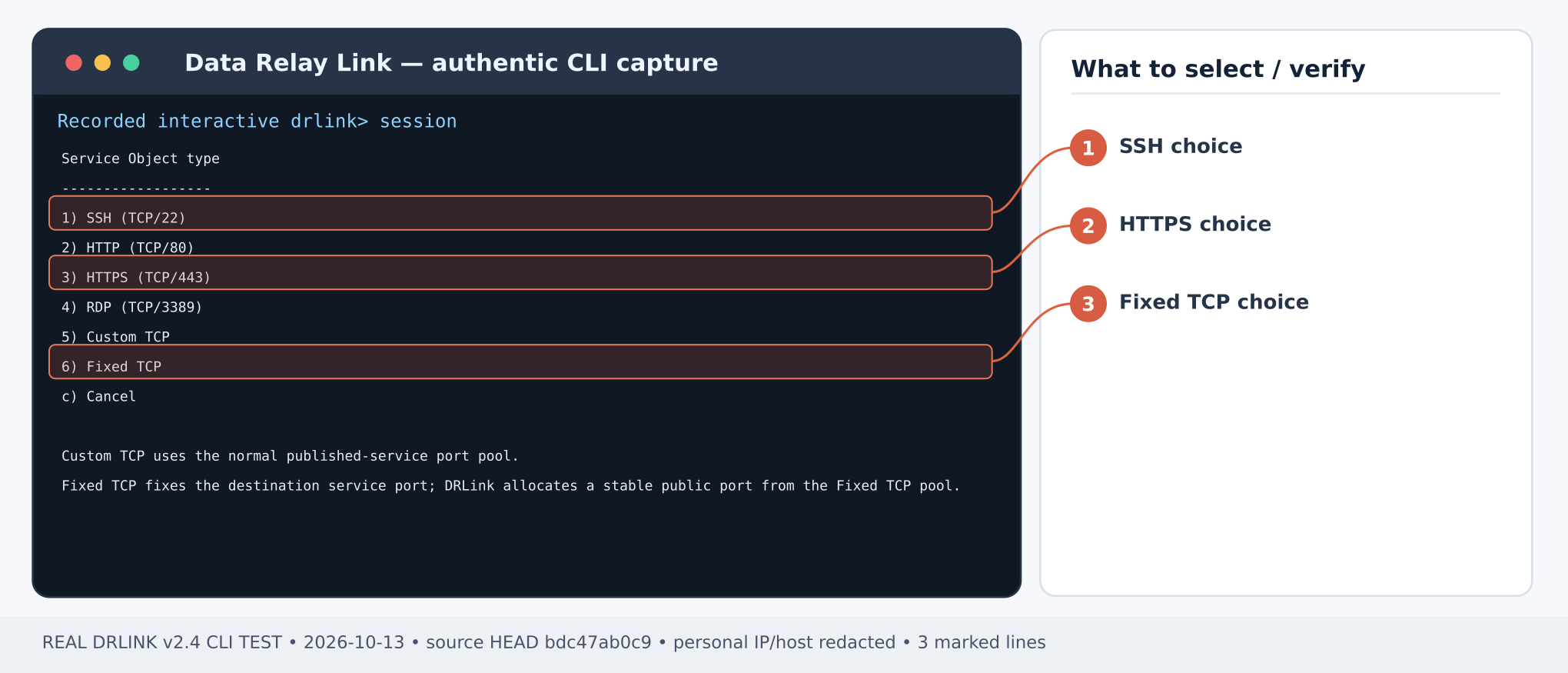
Figure 1. Service Object type choices: 1 SSH/TCP 22, 3 HTTPS/TCP 443, or 6 Fixed TCP as needed. CLI output example; sensitive addresses and hostnames are masked.Server REPL:
set network-object firewall-console type ip value 10.40.10.8set service-object console-https type tcp port 8443show network-object firewall-consoleshow service-object console-https
Prefer setting the required Remote Access WHITELIST before publishing this sensitive UI. See office-only allowlist.
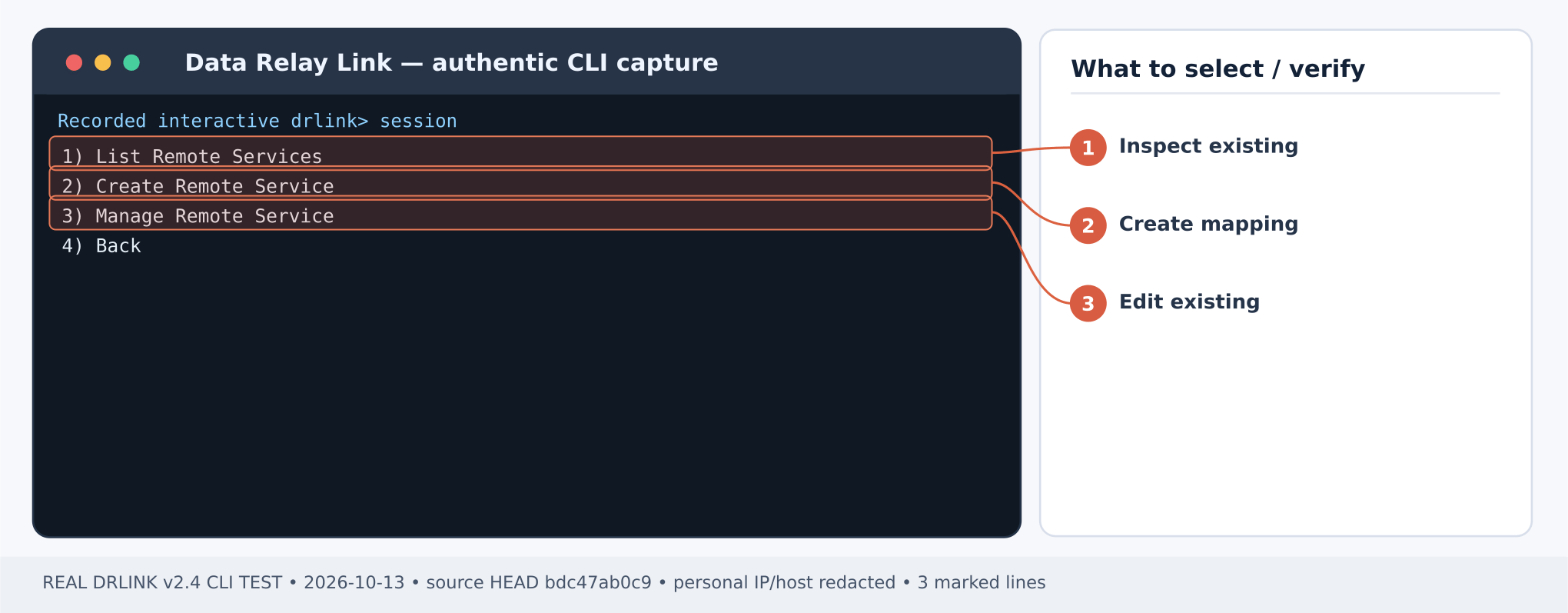
Figure 2. On the owning Agent Host select 2 Create Remote Service; this does not create the service on the Server. CLI output example; sensitive addresses and hostnames are masked.After enrolling an Agent that can reach the target LAN IP, use the Agent REPL:
set remote-service firewall-ui destination firewall-console service console-https enabledshow remote-service firewall-ui
Record the reserved public endpoint shown by the CLI.
Configure a DNS name such as console.example.net to reach the DRLink public address. The backend HTTPS certificate must match console.example.net (or a separately verified name that the application actually presents). Access:
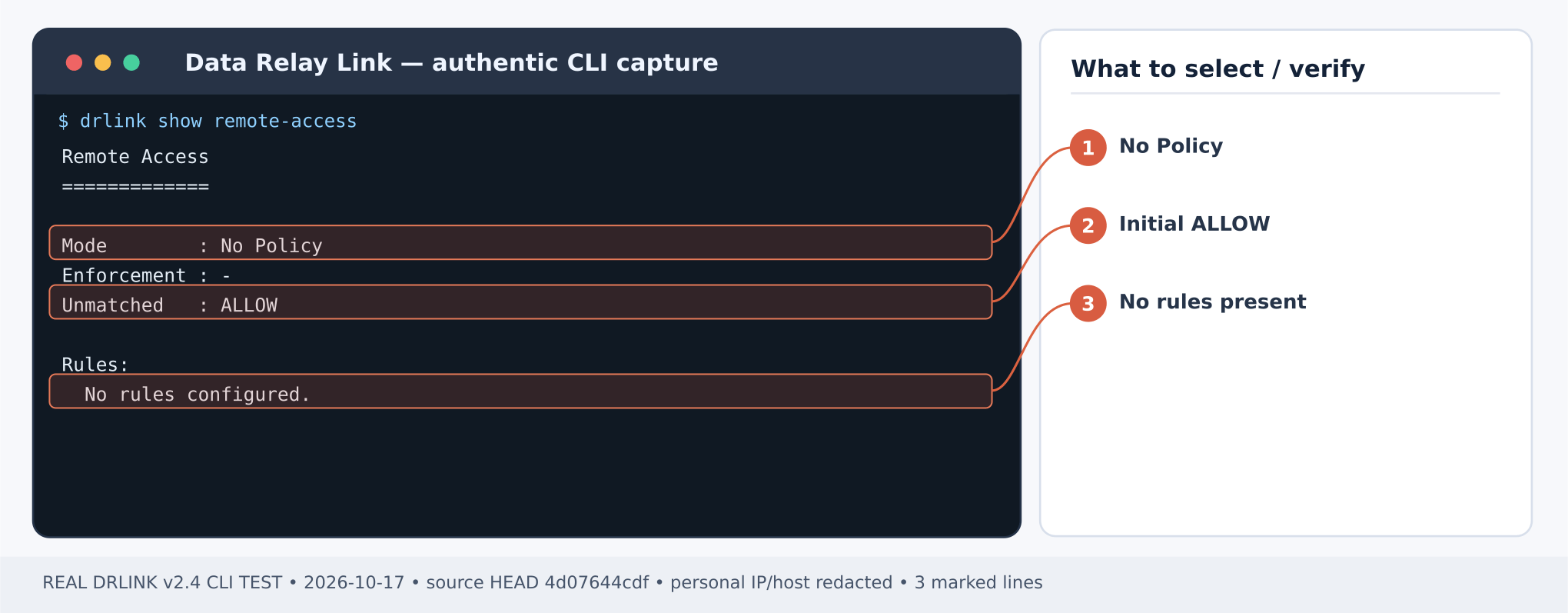
Figure 3. Remote Access before any rules: No Policy, unmatched ALLOW. A new published service is not automatically source-restricted. CLI output example; sensitive addresses and hostnames are masked.Server REPL:
show remote-accessshow managed-host <relay-host> remote-servicessystem audit
From a second, unapproved source, test access and confirm the policy denial, not merely a network timeout. If Remote Access has no policy, it defaults to ALLOW: publishing alone is not sufficient access restriction.
Unexpected ALLOW: inspect all matching Remote Access rules and their effective mode; set remote-access disabled is ALLOW ALL, not a safe emergency deny.
Retire console: remove firewall-ui on the owning Agent after impact review, leaving unrelated LAN services untouched.
The application keeps its own TLS and login. Verify its certificate hostname at the allocated public endpoint without skipping certificate checks. After a reconnect, synchronize on the owning Agent and check the current Remote Service generation before declaring recovery.Current CLI inventory · MCP compatibility
Last modified on October 29, 2026
{"docsConfig":{"theme":"mint","$schema":"https://mintlify.com/docs.json","name":"DataRelay Link","description":"Lightweight secure connectivity for isolated and restricted networks with controlled remote access and agentless outbound egress.","colors":{"primary":"#C2410C","light":"#FB923C","dark":"#C75A00"},"logo":{"light":"https://mintcdn.com/data-relay/QdSvVfPZ7NEJSOWl/logo/light.svg?fit=max\u0026auto=format\u0026n=QdSvVfPZ7NEJSOWl\u0026q=85\u0026s=888463e35ab49f73f9b174030b3263d6","dark":"https://mintcdn.com/data-relay/QdSvVfPZ7NEJSOWl/logo/dark.svg?fit=max\u0026auto=format\u0026n=QdSvVfPZ7NEJSOWl\u0026q=85\u0026s=78944f5be2786c960ab6daaaf7ca870b","href":"https://link.datarelay.run"},"favicon":"https://mintcdn.com/data-relay/QdSvVfPZ7NEJSOWl/favicon.svg?fit=max\u0026auto=format\u0026n=QdSvVfPZ7NEJSOWl\u0026q=85\u0026s=d6f1dea7850d21b0c157e4be3317c226","appearance":{"default":"system","strict":false},"navbar":{"links":[{"href":"https://datarelay.run/","label":"DataRelay"},{"href":"https://link.datarelay.run/","label":"Link"},{"href":"https://control.datarelay.run/","label":"Control"},{"href":"https://grant.datarelay.run/","label":"Grant"},{"href":"https://engineering.datarelay.run/","label":"Engineering"},{"href":"https://github.com/datarelay-labs/datarelay-link","type":"github"}]},"search":{"prompt":"Search DataRelay Link docs..."},"seo":{"metatags":{"canonical":"https://link.datarelay.run"},"indexing":"navigable"},"metadata":{"timestamp":true},"styling":{"latex":false},"navigation":{"languages":[{"language":"en","href":""},{"language":"ko","href":"ko"}]}},"deployment":{"deploymentMetadataValue":{"subdomain":"data-relay","hasAudioNarration":false,"actualSubdomain":"data-relay","customDomains":["link.datarelay.run"],"gitSource":{"type":"github","owner":"datarelay-labs","repo":"datarelay-link-docs","deployBranch":"main","contentDirectory":"","isPrivate":false,"mountPath":"","label":""},"chroma":{"latestBuiltDeploymentHistoryId":"6ae2b51eefa5e7bcbb87bc8e","collectionId":"a1f69361-66ae-435c-96ea-5f84e3b497ae","liveDeploymentHistoryId":"6ae2b51eefa5e7bcbb87bc8e","schemaVersion":"v3"},"entitlements":{"AI_CHAT":{"status":"DISABLED"}},"buildId":"6ae2b51eefa5e7bcbb87bc8e","clientVersion":"0.0.4044","searchFilterCounts":[{"language":"en","tag":"Practical Use Cases","count":13},{"language":"ko","tag":"실습: 활용 사례","count":13},{"language":"en","tag":"Getting Started","count":11},{"language":"ko","tag":"시작하기","count":10},{"language":"en","tag":"Security \u0026 Reference","count":9},{"language":"ko","tag":"보안 \u0026 참고","count":8},{"language":"en","tag":"Operations","count":7},{"language":"ko","tag":"운영 \u0026 문제 해결","count":7},{"language":"en","tag":"Remote Services \u0026 Access","count":5},{"language":"ko","tag":"Remote Service \u0026 Access","count":5},{"language":"en","tag":"AI Access","count":4},{"language":"ko","tag":"AI Access","count":4},{"language":"en","tag":"Deployment","count":3},{"language":"en","tag":"CLI \u0026 Configuration","count":3},{"language":"en","tag":"Managed Hosts \u0026 Objects","count":3},{"language":"ko","tag":"배포","count":3},{"language":"ko","tag":"CLI \u0026 Configuration","count":3},{"language":"ko","tag":"Managed Host \u0026 Object","count":3},{"language":"en","tag":"Internet Access","count":1},{"language":"ko","tag":"Internet Access","count":1}]},"assistantConfig":{"enableAskAiButton":false,"enableStarterQuestions":false,"enableContextualStarterQuestions":false,"enableAskAiSearchBar":true},"basePath":"","hasChatPermissions":false,"hasWebMcpPermissions":false,"toggles":[{"name":"kill-isr","enabled":true,"variant":{"name":"disabled","enabled":false,"feature_enabled":true},"impressionData":false},{"name":"agent-mintlify-slack","enabled":true,"variant":{"name":"disabled","enabled":false,"feature_enabled":true},"impressionData":false},{"name":"agent-integrations-settings","enabled":true,"variant":{"name":"disabled","enabled":false,"feature_enabled":true},"impressionData":false},{"name":"automations-pr-grouping","enabled":true,"variant":{"name":"disabled","enabled":false,"feature_enabled":true},"impressionData":false},{"name":"custom-prefix","enabled":true,"variant":{"name":"disabled","enabled":false,"feature_enabled":true},"impressionData":false},{"name":"analytics-v7","enabled":true,"variant":{"name":"disabled","enabled":false,"feature_enabled":true},"impressionData":false},{"name":"user-flows-analytics","enabled":true,"variant":{"name":"disabled","enabled":false,"feature_enabled":true},"impressionData":false},{"name":"no-publish-flow","enabled":true,"variant":{"name":"disabled","enabled":false,"feature_enabled":true},"impressionData":false},{"name":"workos-onboarding","enabled":true,"variant":{"name":"disabled","enabled":false,"feature_enabled":true},"impressionData":false},{"name":"llms-txt-v2","enabled":true,"variant":{"name":"disabled","enabled":false,"feature_enabled":true},"impressionData":false},{"name":"snapshot-serving-live","enabled":true,"variant":{"name":"disabled","enabled":false,"feature_enabled":true},"impressionData":false},{"name":"stripTemperatureMiddleware","enabled":true,"variant":{"name":"disabled","enabled":false,"feature_enabled":true},"impressionData":false},{"name":"support-platform-pylon-zendesk","enabled":true,"variant":{"name":"disabled","enabled":false,"feature_enabled":true},"impressionData":false},{"name":"snapshot-serving","enabled":true,"variant":{"name":"disabled","enabled":false,"feature_enabled":true},"impressionData":false},{"name":"instant-rollback","enabled":true,"variant":{"name":"disabled","enabled":false,"feature_enabled":true},"impressionData":false},{"name":"granular-notifications-server","enabled":true,"variant":{"name":"disabled","enabled":false,"feature_enabled":true},"impressionData":false},{"name":"granular-notifications","enabled":true,"variant":{"name":"disabled","enabled":false,"feature_enabled":true},"impressionData":false},{"name":"automations-fable","enabled":true,"variant":{"name":"disabled","enabled":false,"feature_enabled":true},"impressionData":false},{"name":"fixed-ai-action-pricing","enabled":true,"variant":{"name":"disabled","enabled":false,"feature_enabled":true},"impressionData":false},{"name":"automation-resolve-merge-conflict","enabled":true,"variant":{"name":"disabled","enabled":false,"feature_enabled":true},"impressionData":false},{"name":"scoped-publishing","enabled":true,"variant":{"name":"disabled","enabled":false,"feature_enabled":true},"impressionData":false},{"name":"mintql","enabled":true,"variant":{"name":"disabled","enabled":false,"feature_enabled":true},"impressionData":false},{"name":"page-level-analytics","enabled":true,"variant":{"name":"disabled","enabled":false,"feature_enabled":true},"impressionData":false},{"name":"editor-version-history-v2","enabled":true,"variant":{"name":"disabled","enabled":false,"feature_enabled":true},"impressionData":false},{"name":"billing-page-v2","enabled":true,"variant":{"name":"disabled","enabled":false,"feature_enabled":true},"impressionData":false},{"name":"full-page-search","enabled":true,"variant":{"name":"disabled","enabled":false,"feature_enabled":true},"impressionData":false},{"name":"workspace-projects","enabled":true,"variant":{"name":"disabled","enabled":false,"feature_enabled":true},"impressionData":false},{"name":"assistant-v5","enabled":true,"variant":{"name":"disabled","enabled":false,"feature_enabled":true},"impressionData":false},{"name":"byok-sep-25","enabled":true,"variant":{"name":"disabled","enabled":false,"feature_enabled":true},"impressionData":false},{"name":"fork-pr-previews","enabled":true,"variant":{"name":"disabled","enabled":false,"feature_enabled":true},"impressionData":false},{"name":"revalidation-jwt","enabled":true,"variant":{"name":"disabled","enabled":false,"feature_enabled":true},"impressionData":false},{"name":"vite-origin","enabled":true,"variant":{"name":"disabled","enabled":false,"feature_enabled":true},"impressionData":false},{"name":"billing-updated-9-15","enabled":true,"variant":{"name":"disabled","enabled":false,"feature_enabled":true},"impressionData":false},{"name":"workos-sso-scim","enabled":true,"variant":{"name":"disabled","enabled":false,"feature_enabled":true},"impressionData":false},{"name":"hobby-abuse-scan","enabled":true,"variant":{"name":"disabled","enabled":false,"feature_enabled":true},"impressionData":false},{"name":"dashboard-inbox","enabled":true,"variant":{"name":"disabled","enabled":false,"feature_enabled":true},"impressionData":false},{"name":"workos-signup","enabled":true,"variant":{"name":"disabled","enabled":false,"feature_enabled":true},"impressionData":false},{"name":"turbopuffer-dual-write","enabled":true,"variant":{"name":"disabled","enabled":false,"feature_enabled":true},"impressionData":false},{"name":"workos-enabled","enabled":true,"variant":{"name":"disabled","enabled":false,"feature_enabled":true},"impressionData":false},{"name":"approve-review-flow","enabled":true,"variant":{"name":"disabled","enabled":false,"feature_enabled":true},"impressionData":false},{"name":"sso-setup-deadline-banner","enabled":true,"variant":{"name":"disabled","enabled":false,"feature_enabled":true},"impressionData":false}],"googleFontsInlined":false},"customCss":[{"filePath":"style.css","content":":root{--dr-brand:#C2410C;--dr-brand-hover:#9A3412;--dr-brand-soft:#FFF7ED;--dr-product-accent:#0369A1;--dr-bg:#FFFFFF;--dr-surface:#FFFFFF;--dr-surface-subtle:#FAFAF9;--dr-ink:#1C1917;--dr-muted:#57534E;--dr-border:#E7E5E4;--dr-border-strong:#D6D3D1;--dr-shadow-sm:0 1px 2px rgb(28 25 23 / 0.05);--dr-shadow-md:0 14px 34px rgb(28 25 23 / 0.09);--dr-radius-sm:10px;--dr-radius-md:16px;--dr-radius-lg:24px}.dark{--dr-brand:#FB923C;--dr-brand-hover:#FDBA74;--dr-brand-soft:#2A160D;--dr-product-accent:#38BDF8;--dr-bg:#0C0A09;--dr-surface:#141210;--dr-surface-subtle:#1C1917;--dr-ink:#FAFAF9;--dr-muted:#C7C2BC;--dr-border:#292524;--dr-border-strong:#44403C;--dr-shadow-sm:0 1px 2px rgb(0 0 0 / 0.25);--dr-shadow-md:0 18px 42px rgb(0 0 0 / 0.32)}html{scroll-behavior:smooth}body{text-rendering:optimizeLegibility;-webkit-font-smoothing:antialiased}#navbar-transition{background:rgb(255 255 255/.9)!important;border-color:rgb(120 113 108/.16)!important;backdrop-filter:blur(16px) saturate(150%);-webkit-backdrop-filter:blur(16px) saturate(150%)}.dark #navbar-transition{background:rgb(12 10 9/.88)!important;border-color:rgb(231 229 228/.1)!important}.nav-logo{height:2rem!important}body,main h1,main h2{color:var(--dr-ink)}main h1{letter-spacing:-.038em;font-weight:760;line-height:1.08}main h2{letter-spacing:-.025em;font-weight:700}main h3{letter-spacing:-.015em}main li,main p{line-height:1.72}main blockquote{border-left:3px solid var(--dr-product-accent)!important;background:var(--dr-surface-subtle);border-radius:0 var(--dr-radius-sm) var(--dr-radius-sm) 0;padding:.8rem 1rem}main pre{border:1px solid var(--dr-border)!important;border-radius:var(--dr-radius-md)!important;box-shadow:var(--dr-shadow-sm)}main table{border-color:var(--dr-border)!important;border-radius:var(--dr-radius-sm)}.dr-hero-kicker{display:inline-flex;align-items:center;gap:.5rem;margin:0 0 1rem;padding:.42rem .7rem;border:1px solid #fed7aa;border-radius:999px;background:#fff7ed;color:#9a3412;font-size:.72rem;font-weight:760;letter-spacing:.12em;text-transform:uppercase}.dark .dr-hero-kicker{border-color:#7c2d12;background:#2a160d;color:#fdba74}.dr-hero-kicker+h1{max-width:950px;margin-top:0!important;font-size:clamp(2.7rem,6vw,4.85rem)!important;line-height:.98!important;letter-spacing:-.055em!important}.dr-hero-actions{display:flex;flex-wrap:wrap;gap:.7rem;margin:1.55rem 0 1.35rem}.dr-button{display:inline-flex;min-height:2.75rem;align-items:center;justify-content:center;border-radius:.72rem;padding:.68rem 1rem;border:1px solid transparent;font-size:.9rem;font-weight:680;line-height:1;text-decoration:none!important;transition:transform 150ms ease,border-color 150ms ease,background-color 150ms ease,box-shadow 150ms ease}.dr-button:hover{transform:translateY(-1px)}.dr-button-primary{background:var(--dr-brand);color:#fff!important;box-shadow:0 6px 18px rgb(194 65 12/.2)}.dr-button-primary:hover{background:var(--dr-brand-hover)}.dark .dr-button-primary{color:#1c1917!important}.dr-button-secondary{background:var(--dr-surface);color:var(--dr-ink)!important;border-color:var(--dr-border-strong);box-shadow:var(--dr-shadow-sm)}.dr-button-secondary:hover{border-color:var(--dr-product-accent)}.dr-family-strip{display:flex;align-items:center;gap:.35rem;margin:0 0 2rem;padding:.4rem;width:fit-content;max-width:100%;overflow-x:auto;border:1px solid var(--dr-border);border-radius:.85rem;background:var(--dr-surface-subtle);scrollbar-width:none}.dr-family-strip::-webkit-scrollbar{display:none}.dr-family-strip .dr-family-current,.dr-family-strip a{display:inline-flex;align-items:center;min-height:2rem;padding:.42rem .68rem;border-radius:.56rem;white-space:nowrap;color:var(--dr-muted)!important;font-size:.78rem;font-weight:650;text-decoration:none!important}.dr-family-strip a:hover{color:var(--dr-ink)!important;background:var(--dr-surface)}.dr-family-strip .dr-family-current{color:#fff!important;background:var(--dr-product-accent);box-shadow:var(--dr-shadow-sm)}.dark .dr-family-strip .dr-family-current{color:#0c0a09!important}.card{border-color:var(--dr-border)!important;border-radius:var(--dr-radius-md)!important;background:var(--dr-surface)!important;box-shadow:var(--dr-shadow-sm);transition:transform 160ms ease,box-shadow 160ms ease,border-color 160ms ease!important}.card:hover{transform:translateY(-2px);border-color:var(--dr-product-accent)!important;box-shadow:var(--dr-shadow-md)}[data-component-part=card-title]{letter-spacing:-.012em}[data-component-part=card-icon]{color:var(--dr-product-accent)!important}.callout{border-radius:var(--dr-radius-md)!important}footer{border-top-color:var(--dr-border)!important}:where(a, button, input, select, textarea):focus-visible{outline:3px solid var(--dr-product-accent)!important;outline-offset:3px!important}@media (max-width:768px){.dr-hero-kicker+h1{font-size:clamp(2.35rem,13vw,3.55rem)!important}.dr-hero-actions{display:grid;grid-template-columns:1fr}.dr-button,.dr-family-strip{width:100%}}@media (prefers-reduced-motion:reduce){html{scroll-behavior:auto}.card,.dr-button{transition:none!important}.card:hover,.dr-button:hover{transform:none}}"}],"page":{"pagePath":"use-cases/private-web","slug":"/use-cases/private-web","pageMetadata":{"title":"Use case: Private HTTPS console","description":"Access an internal HTTPS management application through a controlled Remote Service.","href":"/use-cases/private-web"},"description":{"compiledSource":"\"use strict\";\nconst {jsx: _jsx} = arguments[0];\nconst {useMDXComponents: _provideComponents} = arguments[0];\nfunction _createMdxContent(props) {\n const _components = {\n p: \"p\",\n ..._provideComponents(),\n ...props.components\n };\n return _jsx(_components.p, {\n children: \"Access an internal HTTPS management application through a controlled Remote Service.\"\n });\n}\nfunction MDXContent(props = {}) {\n const {wrapper: MDXLayout} = {\n ..._provideComponents(),\n ...props.components\n };\n return MDXLayout ? _jsx(MDXLayout, {\n ...props,\n children: _jsx(_createMdxContent, {\n ...props\n })\n }) : _createMdxContent(props);\n}\nreturn {\n default: MDXContent\n};\n","frontmatter":{},"scope":{}},"pageType":"default","mdx":{"mdxSource":{"compiledSource":"\"use strict\";const{Fragment:_Fragment,jsx:_jsx,jsxs:_jsxs}=arguments[0];const{useMDXComponents:_provideComponents}=arguments[0];function _createMdxContent(props){const _components={a:`a`,code:`code`,em:`em`,li:`li`,p:`p`,pre:`pre`,span:`span`,strong:`strong`,ul:`ul`,..._provideComponents(),...props.components},{CodeBlock,Heading,OptimizedImage}=_components;if(!CodeBlock)_missingMdxReference(`CodeBlock`,true);if(!Heading)_missingMdxReference(`Heading`,true);if(!OptimizedImage)_missingMdxReference(`OptimizedImage`,true);return _jsxs(_Fragment,{children:[_jsx(Heading,{level:`1`,id:`reach-a-private-https-administration-console`,children:`Reach a private HTTPS administration console`}),`\n`,_jsxs(_components.p,{children:[_jsx(_components.strong,{children:`Outcome:`}),` A support workstation securely reaches one appliance’s HTTPS admin UI; you do not expose the entire appliance LAN.`]}),`\n`,_jsxs(_components.p,{children:[_jsx(_components.strong,{children:`Example:`}),` Agent on a reachable LAN host → firewall console 10.40.10.8:8443 → externally reserved DRLink TCP port.`]}),`\n`,_jsx(Heading,{level:`2`,id:`step-1-—-confirm-the-existing-application`,children:`Step 1 — confirm the existing application`}),`\n`,_jsxs(_components.p,{children:[`On the Agent/gateway OS, establish that `,_jsx(_components.strong,{children:`10.40.10.8:8443`}),` is reachable and the admin application has a trusted certificate for the name end users will use. DRLink Remote Access uses `,_jsx(_components.strong,{children:`TLS passthrough`}),`, not TLS termination. A certificate-name mismatch is a deployment problem, not a reason to disable verification.`]}),`\n`,_jsx(Heading,{level:`2`,id:`new-agent-configure-the-console-with-zero-touch`,children:`New Agent: configure the console with Zero-Touch`}),`\n`,_jsxs(_components.p,{children:[`On the Server run `,_jsx(_components.code,{children:`set enrollment zero-touch`}),`, select `,_jsx(_components.strong,{children:`Linux`}),`, name/describe the host, then `,_jsx(_components.strong,{children:`Choose Remote Services → Add HTTPS`}),`. Enter Service ID `,_jsx(_components.code,{children:`firewall-ui`}),`, Target host `,_jsx(_components.strong,{children:`10.40.10.8`}),`, Target port `,_jsx(_components.strong,{children:`8443`}),`, then `,_jsx(_components.strong,{children:`Finish`}),`. Run the generated command on the gateway that can reach that LAN.`]}),`\n`,_jsxs(_components.p,{children:[`The required Objects and Remote Service are automatic. Inspect `,_jsx(_components.code,{children:`show remote-services`}),` and the actual service detail on the Agent, then continue at `,_jsx(_components.strong,{children:`Step 4`}),`. Steps 2–3 below are only for additional services on an existing Agent. Prepare required source restrictions before publishing.`]}),`\n`,_jsx(Heading,{level:`2`,id:`step-2-—-register-the-destination-and-service`,children:`Step 2 — register the destination and service`}),`\n`,_jsx(OptimizedImage,{src:`https://mintcdn.com/data-relay/RzAl7zFhuZCRSIKj/images/cli-captures/service-object-type.png?fit=max\u0026auto=format\u0026n=RzAl7zFhuZCRSIKj\u0026q=85\u0026s=42a9c0489cf532fba96595426ad4f46d`,alt:`Real Data Relay Link CLI capture — Service Object type choices: 1 SSH/TCP 22, 3 HTTPS/TCP 443, or 6 Fixed TCP as needed.`,\"data-og-width\":`2040`,width:`2040`,\"data-og-height\":`875`,height:`875`,\"data-path\":`images/cli-captures/service-object-type.png`,\"data-optimize\":`true`,\"data-opv\":`3`,srcset:`https://mintcdn.com/data-relay/RzAl7zFhuZCRSIKj/images/cli-captures/service-object-type.png?w=280\u0026fit=max\u0026auto=format\u0026n=RzAl7zFhuZCRSIKj\u0026q=85\u0026s=b473f211ec8bf903b2a6d7fb491f58fd 280w, https://mintcdn.com/data-relay/RzAl7zFhuZCRSIKj/images/cli-captures/service-object-type.png?w=560\u0026fit=max\u0026auto=format\u0026n=RzAl7zFhuZCRSIKj\u0026q=85\u0026s=702e6b27f78a34d745efb69dfde957e3 560w, https://mintcdn.com/data-relay/RzAl7zFhuZCRSIKj/images/cli-captures/service-object-type.png?w=840\u0026fit=max\u0026auto=format\u0026n=RzAl7zFhuZCRSIKj\u0026q=85\u0026s=f1c6d687fb9d7def832fe67458649756 840w, https://mintcdn.com/data-relay/RzAl7zFhuZCRSIKj/images/cli-captures/service-object-type.png?w=1100\u0026fit=max\u0026auto=format\u0026n=RzAl7zFhuZCRSIKj\u0026q=85\u0026s=8c21065218c5d21d567216ac5efe22f6 1100w, https://mintcdn.com/data-relay/RzAl7zFhuZCRSIKj/images/cli-captures/service-object-type.png?w=1650\u0026fit=max\u0026auto=format\u0026n=RzAl7zFhuZCRSIKj\u0026q=85\u0026s=1dcc00f5c17e9367e520b822d5a5d7db 1650w, https://mintcdn.com/data-relay/RzAl7zFhuZCRSIKj/images/cli-captures/service-object-type.png?w=2500\u0026fit=max\u0026auto=format\u0026n=RzAl7zFhuZCRSIKj\u0026q=85\u0026s=cafb88b37beeab9559e7295c90f2d61e 2500w`}),`\n`,_jsx(_components.p,{children:_jsx(_components.em,{children:`Figure 1. Service Object type choices: 1 SSH/TCP 22, 3 HTTPS/TCP 443, or 6 Fixed TCP as needed. CLI output example; sensitive addresses and hostnames are masked.`})}),`\n`,_jsx(_components.p,{children:_jsx(_components.strong,{children:`Server REPL:`})}),`\n`,_jsx(CodeBlock,{filename:``,numberOfLines:`5`,language:`text`,children:_jsx(_components.pre,{className:`shiki shiki-themes github-light-default dark-plus`,style:{backgroundColor:`#ffffff`,\"--shiki-dark-bg\":`#0B0C0E`,color:`#1f2328`,\"--shiki-dark\":`#D4D4D4`},language:`text`,children:_jsxs(_components.code,{language:`text`,numberOfLines:`5`,children:[_jsx(_components.span,{className:`line`,children:_jsx(_components.span,{children:`set network-object firewall-console type ip value 10.40.10.8`})}),`\n`,_jsx(_components.span,{className:`line`,children:_jsx(_components.span,{children:`set service-object console-https type tcp port 8443`})}),`\n`,_jsx(_components.span,{className:`line`,children:_jsx(_components.span,{children:`show network-object firewall-console`})}),`\n`,_jsx(_components.span,{className:`line`,children:_jsx(_components.span,{children:`show service-object console-https`})}),`\n`,_jsx(_components.span,{className:`line`,children:_jsx(_components.span,{})})]})})}),`\n`,_jsxs(_components.p,{children:[`Prefer setting the required Remote Access WHITELIST `,_jsx(_components.strong,{children:`before`}),` publishing this sensitive UI. See `,_jsx(_components.a,{href:`/use-cases/office-allowlist`,children:`office-only allowlist`}),`.`]}),`\n`,_jsx(Heading,{level:`2`,id:`step-3-—-publish-only-this-port`,children:`Step 3 — publish only this port`}),`\n`,_jsx(OptimizedImage,{src:`https://mintcdn.com/data-relay/RzAl7zFhuZCRSIKj/images/cli-captures/agent-create-service-menu.png?fit=max\u0026auto=format\u0026n=RzAl7zFhuZCRSIKj\u0026q=85\u0026s=6d4924f03d588729dd296b28abc0015a`,alt:`Real Data Relay Link CLI capture — On the owning Agent Host select 2 Create Remote Service; this does not create the service on the Server.`,\"data-og-width\":`2040`,width:`2040`,\"data-og-height\":`797`,height:`797`,\"data-path\":`images/cli-captures/agent-create-service-menu.png`,\"data-optimize\":`true`,\"data-opv\":`3`,srcset:`https://mintcdn.com/data-relay/RzAl7zFhuZCRSIKj/images/cli-captures/agent-create-service-menu.png?w=280\u0026fit=max\u0026auto=format\u0026n=RzAl7zFhuZCRSIKj\u0026q=85\u0026s=21c7cdcd6c85db16c93ef69c97ee51de 280w, https://mintcdn.com/data-relay/RzAl7zFhuZCRSIKj/images/cli-captures/agent-create-service-menu.png?w=560\u0026fit=max\u0026auto=format\u0026n=RzAl7zFhuZCRSIKj\u0026q=85\u0026s=0ed856ece19a11465e7663b7b07db642 560w, https://mintcdn.com/data-relay/RzAl7zFhuZCRSIKj/images/cli-captures/agent-create-service-menu.png?w=840\u0026fit=max\u0026auto=format\u0026n=RzAl7zFhuZCRSIKj\u0026q=85\u0026s=9c8d127708775ceaceb869bf319d0ffb 840w, https://mintcdn.com/data-relay/RzAl7zFhuZCRSIKj/images/cli-captures/agent-create-service-menu.png?w=1100\u0026fit=max\u0026auto=format\u0026n=RzAl7zFhuZCRSIKj\u0026q=85\u0026s=4ca80179b4bbda038d099a496d8732b0 1100w, https://mintcdn.com/data-relay/RzAl7zFhuZCRSIKj/images/cli-captures/agent-create-service-menu.png?w=1650\u0026fit=max\u0026auto=format\u0026n=RzAl7zFhuZCRSIKj\u0026q=85\u0026s=5f7aee4a9424d1e66dd4baa0d596f19c 1650w, https://mintcdn.com/data-relay/RzAl7zFhuZCRSIKj/images/cli-captures/agent-create-service-menu.png?w=2500\u0026fit=max\u0026auto=format\u0026n=RzAl7zFhuZCRSIKj\u0026q=85\u0026s=d2fdb726cac953d95e674619e27aa230 2500w`}),`\n`,_jsx(_components.p,{children:_jsx(_components.em,{children:`Figure 2. On the owning Agent Host select 2 Create Remote Service; this does not create the service on the Server. CLI output example; sensitive addresses and hostnames are masked.`})}),`\n`,_jsxs(_components.p,{children:[`After `,_jsx(_components.a,{href:`/guides/enrollment`,children:`enrolling an Agent`}),` that can reach the target LAN IP, use the `,_jsx(_components.strong,{children:`Agent REPL`}),`:`]}),`\n`,_jsx(CodeBlock,{filename:``,numberOfLines:`3`,language:`text`,children:_jsx(_components.pre,{className:`shiki shiki-themes github-light-default dark-plus`,style:{backgroundColor:`#ffffff`,\"--shiki-dark-bg\":`#0B0C0E`,color:`#1f2328`,\"--shiki-dark\":`#D4D4D4`},language:`text`,children:_jsxs(_components.code,{language:`text`,numberOfLines:`3`,children:[_jsx(_components.span,{className:`line`,children:_jsx(_components.span,{children:`set remote-service firewall-ui destination firewall-console service console-https enabled`})}),`\n`,_jsx(_components.span,{className:`line`,children:_jsx(_components.span,{children:`show remote-service firewall-ui`})}),`\n`,_jsx(_components.span,{className:`line`,children:_jsx(_components.span,{})})]})})}),`\n`,_jsx(_components.p,{children:`Record the reserved public endpoint shown by the CLI.`}),`\n`,_jsx(Heading,{level:`2`,id:`step-4-—-test-from-an-authorized-workstation`,children:`Step 4 — test from an authorized workstation`}),`\n`,_jsxs(_components.p,{children:[`Configure a DNS name such as `,_jsx(_components.strong,{children:`console.example.net`}),` to reach the DRLink public address. The backend HTTPS certificate must match `,_jsx(_components.strong,{children:`console.example.net`}),` (or a separately verified name that the application actually presents). Access:`]}),`\n`,_jsx(CodeBlock,{filename:``,numberOfLines:`2`,language:`text`,children:_jsx(_components.pre,{className:`shiki shiki-themes github-light-default dark-plus`,style:{backgroundColor:`#ffffff`,\"--shiki-dark-bg\":`#0B0C0E`,color:`#1f2328`,\"--shiki-dark\":`#D4D4D4`},language:`text`,children:_jsxs(_components.code,{language:`text`,numberOfLines:`2`,children:[_jsx(_components.span,{className:`line`,children:_jsx(_components.span,{children:`https://console.example.net:\u003creserved-public-port>/`})}),`\n`,_jsx(_components.span,{className:`line`,children:_jsx(_components.span,{})})]})})}),`\n`,_jsx(_components.p,{children:`For a DNS test that preserves both the URL hostname and TLS verification, replace placeholders and use:`}),`\n`,_jsx(CodeBlock,{filename:``,numberOfLines:`1`,language:`shellscript`,children:_jsx(_components.pre,{className:`shiki shiki-themes github-light-default dark-plus`,style:{backgroundColor:`#ffffff`,\"--shiki-dark-bg\":`#0B0C0E`,color:`#1f2328`,\"--shiki-dark\":`#D4D4D4`},language:`shellscript`,children:_jsxs(_components.code,{language:`shellscript`,numberOfLines:`1`,children:[_jsxs(_components.span,{className:`line`,children:[_jsx(_components.span,{style:{color:`#953800`,\"--shiki-dark\":`#DCDCAA`},children:`curl`}),_jsx(_components.span,{style:{color:`#0550AE`,\"--shiki-dark\":`#569CD6`},children:` --resolve`}),_jsx(_components.span,{style:{color:`#0A3069`,\"--shiki-dark\":`#CE9178`},children:` console.example.net:`}),_jsx(_components.span,{style:{color:`#CF222E`,\"--shiki-dark\":`#D4D4D4`},children:`\u003c`}),_jsx(_components.span,{style:{color:`#0A3069`,\"--shiki-dark\":`#CE9178`},children:`reserved-public-por`}),_jsx(_components.span,{style:{color:`#0A3069`,\"--shiki-dark\":`#CE9178`},children:`t`}),_jsx(_components.span,{style:{color:`#CF222E`,\"--shiki-dark\":`#D4D4D4`},children:`>`}),_jsx(_components.span,{style:{color:`#0A3069`,\"--shiki-dark\":`#CE9178`},children:`:`}),_jsx(_components.span,{style:{color:`#CF222E`,\"--shiki-dark\":`#D4D4D4`},children:`\u003c`}),_jsx(_components.span,{style:{color:`#0A3069`,\"--shiki-dark\":`#CE9178`},children:`drlink-public-i`}),_jsx(_components.span,{style:{color:`#0A3069`,\"--shiki-dark\":`#CE9178`},children:`p`}),_jsx(_components.span,{style:{color:`#CF222E`,\"--shiki-dark\":`#D4D4D4`},children:`>`}),_jsx(_components.span,{style:{color:`#0A3069`,\"--shiki-dark\":`#CE9178`},children:` https://console.example.net:`}),_jsx(_components.span,{style:{color:`#CF222E`,\"--shiki-dark\":`#D4D4D4`},children:`\u003c`}),_jsx(_components.span,{style:{color:`#0A3069`,\"--shiki-dark\":`#CE9178`},children:`reserved-public-por`}),_jsx(_components.span,{style:{color:`#0A3069`,\"--shiki-dark\":`#CE9178`},children:`t`}),_jsx(_components.span,{style:{color:`#CF222E`,\"--shiki-dark\":`#D4D4D4`},children:`>`}),_jsx(_components.span,{style:{color:`#0A3069`,\"--shiki-dark\":`#CE9178`},children:`/`})]}),`\n`]})})}),`\n`,_jsx(_components.p,{children:`Expected: the appliance login page over validated TLS, not a DRLink management login. Authenticate using the application’s own identity mechanism.`}),`\n`,_jsx(Heading,{level:`2`,id:`step-5-—-verify-restricted-access`,children:`Step 5 — verify restricted access`}),`\n`,_jsx(OptimizedImage,{src:`https://mintcdn.com/data-relay/RzAl7zFhuZCRSIKj/images/cli-captures/server-inbound-default.png?fit=max\u0026auto=format\u0026n=RzAl7zFhuZCRSIKj\u0026q=85\u0026s=6ccc484894e73895ddf128ee290fe3a5`,alt:`Real Data Relay Link CLI capture — Remote Access before any rules: No Policy, unmatched ALLOW. A new published service is not automatically source-restricted.`,\"data-og-width\":`2040`,width:`2040`,\"data-og-height\":`797`,height:`797`,\"data-path\":`images/cli-captures/server-inbound-default.png`,\"data-optimize\":`true`,\"data-opv\":`3`,srcset:`https://mintcdn.com/data-relay/RzAl7zFhuZCRSIKj/images/cli-captures/server-inbound-default.png?w=280\u0026fit=max\u0026auto=format\u0026n=RzAl7zFhuZCRSIKj\u0026q=85\u0026s=b293453a759ecc5583f9fcbaff19ca5c 280w, https://mintcdn.com/data-relay/RzAl7zFhuZCRSIKj/images/cli-captures/server-inbound-default.png?w=560\u0026fit=max\u0026auto=format\u0026n=RzAl7zFhuZCRSIKj\u0026q=85\u0026s=214949d87a774afcc6773d8ac1bbb49e 560w, https://mintcdn.com/data-relay/RzAl7zFhuZCRSIKj/images/cli-captures/server-inbound-default.png?w=840\u0026fit=max\u0026auto=format\u0026n=RzAl7zFhuZCRSIKj\u0026q=85\u0026s=bd3d827c3af6ad82a62d56e06f614d93 840w, https://mintcdn.com/data-relay/RzAl7zFhuZCRSIKj/images/cli-captures/server-inbound-default.png?w=1100\u0026fit=max\u0026auto=format\u0026n=RzAl7zFhuZCRSIKj\u0026q=85\u0026s=a5cadd6208152ee0116bfa85a430019f 1100w, https://mintcdn.com/data-relay/RzAl7zFhuZCRSIKj/images/cli-captures/server-inbound-default.png?w=1650\u0026fit=max\u0026auto=format\u0026n=RzAl7zFhuZCRSIKj\u0026q=85\u0026s=b0b6e1cc74cef1731bc3200e8204676e 1650w, https://mintcdn.com/data-relay/RzAl7zFhuZCRSIKj/images/cli-captures/server-inbound-default.png?w=2500\u0026fit=max\u0026auto=format\u0026n=RzAl7zFhuZCRSIKj\u0026q=85\u0026s=7a425dde5ec7e7c07b27745013dbcaf2 2500w`}),`\n`,_jsx(_components.p,{children:_jsx(_components.em,{children:`Figure 3. Remote Access before any rules: No Policy, unmatched ALLOW. A new published service is not automatically source-restricted. CLI output example; sensitive addresses and hostnames are masked.`})}),`\n`,_jsx(_components.p,{children:_jsx(_components.strong,{children:`Server REPL:`})}),`\n`,_jsx(CodeBlock,{filename:``,numberOfLines:`4`,language:`text`,children:_jsx(_components.pre,{className:`shiki shiki-themes github-light-default dark-plus`,style:{backgroundColor:`#ffffff`,\"--shiki-dark-bg\":`#0B0C0E`,color:`#1f2328`,\"--shiki-dark\":`#D4D4D4`},language:`text`,children:_jsxs(_components.code,{language:`text`,numberOfLines:`4`,children:[_jsx(_components.span,{className:`line`,children:_jsx(_components.span,{children:`show remote-access`})}),`\n`,_jsx(_components.span,{className:`line`,children:_jsx(_components.span,{children:`show managed-host \u003crelay-host> remote-services`})}),`\n`,_jsx(_components.span,{className:`line`,children:_jsx(_components.span,{children:`system audit`})}),`\n`,_jsx(_components.span,{className:`line`,children:_jsx(_components.span,{})})]})})}),`\n`,_jsxs(_components.p,{children:[`From a second, unapproved source, test access and confirm the `,_jsx(_components.strong,{children:`policy denial`}),`, not merely a network timeout. If Remote Access has `,_jsx(_components.strong,{children:`no policy`}),`, it defaults to `,_jsx(_components.strong,{children:`ALLOW`}),`: publishing alone is not sufficient access restriction.`]}),`\n`,_jsx(Heading,{level:`2`,id:`recovery`,children:`Recovery`}),`\n`,_jsxs(_components.ul,{children:[`\n`,_jsxs(_components.li,{children:[_jsx(_components.strong,{children:`Certificate error:`}),` correct DNS/certificate/SNI on the application, not a proxy rewrite; never turn off TLS verification to pass a test.`]}),`\n`,_jsxs(_components.li,{children:[_jsx(_components.strong,{children:`Browser timeout:`}),` check external firewall, reserved port, Agent connectivity and target 10.40.10.8:8443.`]}),`\n`,_jsxs(_components.li,{children:[_jsx(_components.strong,{children:`Unexpected ALLOW:`}),` inspect all matching Remote Access rules and their effective mode; `,_jsx(_components.code,{children:`set remote-access disabled`}),` is `,_jsx(_components.strong,{children:`ALLOW ALL`}),`, not a safe emergency deny.`]}),`\n`,_jsxs(_components.li,{children:[_jsx(_components.strong,{children:`Retire console:`}),` remove `,_jsx(_components.strong,{children:`firewall-ui`}),` on the owning Agent after impact review, leaving unrelated LAN services untouched.`]}),`\n`]}),`\n`,_jsx(Heading,{level:`2`,id:`current-behavior-check-—-2026-10-28`,children:`Current behavior check — 2026-10-28`}),`\n`,_jsx(_components.p,{children:`The application keeps its own TLS and login. Verify its certificate hostname at the allocated public endpoint without skipping certificate checks. After a reconnect, synchronize on the owning Agent and check the current Remote Service generation before declaring recovery.`}),`\n`,_jsxs(_components.p,{children:[_jsx(_components.a,{href:`/drlink/cli-reference`,children:`Current CLI inventory`}),` · `,_jsx(_components.a,{href:`/reference/mcp-validation`,children:`MCP compatibility`})]})]})}function MDXContent(props={}){const{wrapper:MDXLayout}={..._provideComponents(),...props.components};return MDXLayout?_jsx(MDXLayout,{...props,children:_jsx(_createMdxContent,{...props})}):_createMdxContent(props)}return{default:MDXContent};function _missingMdxReference(id,component){throw new Error(`Expected `+(component?`component`:`object`)+\" `\"+id+\"` to be defined: you likely forgot to import, pass, or provide it.\")}","frontmatter":{},"scope":{"config":{},"pageMetadata":{"title":"Use case: Private HTTPS console","description":"Access an internal HTTPS management application through a controlled Remote Service.","href":"/use-cases/private-web"}}},"mdxSourceWithNoJs":null},"mdxExtracts":{"tableOfContents":[{"title":"Reach a private HTTPS administration console","slug":"reach-a-private-https-administration-console","depth":1,"children":[]},{"title":"Step 1 — confirm the existing application","slug":"step-1-—-confirm-the-existing-application","depth":2,"children":[]},{"title":"New Agent: configure the console with Zero-Touch","slug":"new-agent-configure-the-console-with-zero-touch","depth":2,"children":[]},{"title":"Step 2 — register the destination and service","slug":"step-2-—-register-the-destination-and-service","depth":2,"children":[]},{"title":"Step 3 — publish only this port","slug":"step-3-—-publish-only-this-port","depth":2,"children":[]},{"title":"Step 4 — test from an authorized workstation","slug":"step-4-—-test-from-an-authorized-workstation","depth":2,"children":[]},{"title":"Step 5 — verify restricted access","slug":"step-5-—-verify-restricted-access","depth":2,"children":[]},{"title":"Recovery","slug":"recovery","depth":2,"children":[]},{"title":"Current behavior check — 2026-10-28","slug":"current-behavior-check-—-2026-10-28","depth":2,"children":[]}],"codeExamples":{}},"jsLinks":[],"subdomain":"data-relay","siteName":"DataRelay Link","title":"Use case: Private HTTPS console - DataRelay Link","navMaps":{"firstHrefInVersion":{},"firstHrefInLanguage":{"en":{"href":"/use-cases/private-web","matchLevel":0},"ko":{"href":"/ko/use-cases/private-web","matchLevel":1}}},"lastModified":"2026-10-29T02:38:38.018Z","gitLastModified":"2026-10-29T02:38:30.000Z","originalFileLocation":"use-cases/private-web.mdx","locale":"en"},"headHtml":"\u003cscript data-mint-head>(function(){var d=document.documentElement,p=null;if(!p){try{p=localStorage.getItem(\"isDarkMode\")}catch(e){}if(p==='true')p='dark';else if(p==='false')p='light';if(p!=='light'\u0026\u0026p!=='dark'\u0026\u0026p!=='system')p=\"system\"}var r=p==='system'?(matchMedia(\"(prefers-color-scheme: dark)\").matches?'dark':'light'):p;d.classList.remove(r==='dark'?'light':'dark');d.classList.add(r);d.setAttribute(\"data-theme-preference\",p)})();\u003c/script>\u003cmeta data-mint-head name=\"description\" content=\"Access an internal HTTPS management application through a controlled Remote Service.\">\u003cmeta data-mint-head name=\"application-name\" content=\"DataRelay Link\">\u003cmeta data-mint-head name=\"generator\" content=\"Mintlify\">\u003clink data-mint-head rel=\"icon\" type=\"image/png\" sizes=\"192x192\" href=\"/mintlify-assets/_mintlify/favicons/data-relay/gMMMsFWCyqO9qwwH/_generated/favicon/android-chrome-192x192.png\" media=\"(prefers-color-scheme: light)\">\u003clink data-mint-head rel=\"apple-touch-icon\" type=\"image/png\" sizes=\"180x180\" href=\"/mintlify-assets/_mintlify/favicons/data-relay/gMMMsFWCyqO9qwwH/_generated/favicon/apple-touch-icon.png\">\u003clink data-mint-head rel=\"icon\" type=\"image/png\" sizes=\"16x16\" href=\"/mintlify-assets/_mintlify/favicons/data-relay/gMMMsFWCyqO9qwwH/_generated/favicon/favicon-16x16.png\" media=\"(prefers-color-scheme: light)\">\u003clink data-mint-head rel=\"icon\" type=\"image/png\" sizes=\"32x32\" href=\"/mintlify-assets/_mintlify/favicons/data-relay/gMMMsFWCyqO9qwwH/_generated/favicon/favicon-32x32.png\" media=\"(prefers-color-scheme: light)\">\u003clink data-mint-head rel=\"shortcut icon\" type=\"image/x-icon\" href=\"/mintlify-assets/_mintlify/favicons/data-relay/gMMMsFWCyqO9qwwH/_generated/favicon/favicon.ico\" media=\"(prefers-color-scheme: light)\">\u003clink data-mint-head rel=\"icon\" type=\"image/png\" sizes=\"192x192\" href=\"/mintlify-assets/_mintlify/favicons/data-relay/gMMMsFWCyqO9qwwH/_generated/favicon-dark/android-chrome-192x192.png\" media=\"(prefers-color-scheme: dark)\">\u003clink data-mint-head rel=\"icon\" type=\"image/png\" sizes=\"16x16\" href=\"/mintlify-assets/_mintlify/favicons/data-relay/gMMMsFWCyqO9qwwH/_generated/favicon-dark/favicon-16x16.png\" media=\"(prefers-color-scheme: dark)\">\u003clink data-mint-head rel=\"icon\" type=\"image/png\" sizes=\"32x32\" href=\"/mintlify-assets/_mintlify/favicons/data-relay/gMMMsFWCyqO9qwwH/_generated/favicon-dark/favicon-32x32.png\" media=\"(prefers-color-scheme: dark)\">\u003clink data-mint-head rel=\"shortcut icon\" type=\"image/x-icon\" href=\"/mintlify-assets/_mintlify/favicons/data-relay/gMMMsFWCyqO9qwwH/_generated/favicon-dark/favicon.ico\" media=\"(prefers-color-scheme: dark)\">\u003cmeta data-mint-head property=\"og:title\" content=\"Use case: Private HTTPS console - DataRelay Link\">\u003cmeta data-mint-head property=\"og:description\" content=\"Access an internal HTTPS management application through a controlled Remote Service.\">\u003cmeta data-mint-head property=\"og:site_name\" content=\"DataRelay Link\">\u003cmeta data-mint-head property=\"og:url\" content=\"https://link.datarelay.run/use-cases/private-web\">\u003cmeta data-mint-head property=\"og:type\" content=\"website\">\u003cmeta data-mint-head property=\"og:image\" content=\"https://data-relay.mintlify.app/_mintlify/api/og/v2?division=Practical+Use+Cases\u0026amp;title=Use+case%3A+Private+HTTPS+console\u0026amp;description=Access+an+internal+HTTPS+management+application+through+a+controlled+Remote+Service.\u0026amp;theme=60d049ab3c70b24e2c2b6ae4\u0026amp;signature=d0376c61be367196466aa6c984e6c5002a7089bdbfa4f1638e33f592c9ed495c\">\u003cmeta data-mint-head property=\"og:image:width\" content=\"1200\">\u003cmeta data-mint-head property=\"og:image:height\" content=\"630\">\u003cmeta data-mint-head name=\"twitter:card\" content=\"summary_large_image\">\u003cmeta data-mint-head name=\"twitter:title\" content=\"Use case: Private HTTPS console - DataRelay Link\">\u003cmeta data-mint-head name=\"twitter:description\" content=\"Access an internal HTTPS management application through a controlled Remote Service.\">\u003cmeta data-mint-head name=\"twitter:image\" content=\"https://data-relay.mintlify.app/_mintlify/api/og/v2?division=Practical+Use+Cases\u0026amp;title=Use+case%3A+Private+HTTPS+console\u0026amp;description=Access+an+internal+HTTPS+management+application+through+a+controlled+Remote+Service.\u0026amp;theme=60d049ab3c70b24e2c2b6ae4\u0026amp;signature=d0376c61be367196466aa6c984e6c5002a7089bdbfa4f1638e33f592c9ed495c\">\u003cmeta data-mint-head name=\"twitter:image:width\" content=\"1200\">\u003cmeta data-mint-head name=\"twitter:image:height\" content=\"630\">\u003cmeta data-mint-head name=\"msapplication-config\" content=\"/mintlify-assets/_mintlify/favicons/data-relay/gMMMsFWCyqO9qwwH/_generated/favicon/browserconfig.xml\">\u003cmeta data-mint-head name=\"apple-mobile-web-app-title\" content=\"DataRelay Link\">\u003cmeta data-mint-head name=\"msapplication-TileColor\" content=\"#C2410C\">\u003clink data-mint-head rel=\"canonical\" href=\"https://link.datarelay.run/use-cases/private-web\">\u003clink data-mint-head rel=\"alternate\" type=\"application/xml\" href=\"/sitemap.xml\">\u003clink data-mint-head rel=\"alternate\" type=\"text/markdown\" href=\"/use-cases/private-web.md\">\u003clink data-mint-head rel=\"alternate\" hreflang=\"en\" href=\"https://link.datarelay.run/use-cases/private-web\">\u003clink data-mint-head rel=\"alternate\" hreflang=\"ko\" href=\"https://link.datarelay.run/ko/use-cases/private-web\">\u003clink data-mint-head rel=\"alternate\" hreflang=\"x-default\" href=\"https://link.datarelay.run/use-cases/private-web\">\u003cscript data-mint-head type=\"application/ld+json\">{\"@context\":\"https://schema.org\",\"@graph\":[{\"@type\":\"Organization\",\"@id\":\"https://link.datarelay.run/#organization\",\"name\":\"DataRelay Link\",\"url\":\"https://link.datarelay.run\",\"logo\":{\"@type\":\"ImageObject\",\"url\":\"https://mintcdn.com/data-relay/QdSvVfPZ7NEJSOWl/logo/light.svg?fit=max\u0026auto=format\u0026n=QdSvVfPZ7NEJSOWl\u0026q=85\u0026s=888463e35ab49f73f9b174030b3263d6\"}},{\"@type\":\"WebSite\",\"@id\":\"https://link.datarelay.run#website\",\"name\":\"DataRelay Link\",\"url\":\"https://link.datarelay.run\",\"publisher\":{\"@id\":\"https://link.datarelay.run/#organization\"}},{\"@type\":\"WebPage\",\"@id\":\"https://link.datarelay.run/use-cases/private-web#webpage\",\"url\":\"https://link.datarelay.run/use-cases/private-web\",\"name\":\"Use case: Private HTTPS console\",\"description\":\"Access an internal HTTPS management application through a controlled Remote Service.\",\"dateModified\":\"2026-10-29T02:38:30.000Z\",\"isPartOf\":{\"@id\":\"https://link.datarelay.run#website\"},\"breadcrumb\":{\"@id\":\"https://link.datarelay.run/use-cases/private-web#breadcrumb\"}},{\"@type\":\"BreadcrumbList\",\"@id\":\"https://link.datarelay.run/use-cases/private-web#breadcrumb\",\"itemListElement\":[{\"@type\":\"ListItem\",\"position\":1,\"name\":\"Practical Use Cases\",\"item\":\"https://link.datarelay.run/use-cases/index\"},{\"@type\":\"ListItem\",\"position\":2,\"name\":\"Use case: Private HTTPS console\",\"item\":\"https://link.datarelay.run/use-cases/private-web\"}]},{\"@type\":[\"Article\",\"TechArticle\"],\"@id\":\"https://link.datarelay.run/use-cases/private-web#article\",\"headline\":\"Use case: Private HTTPS console\",\"name\":\"Use case: Private HTTPS console\",\"description\":\"Access an internal HTTPS management application through a controlled Remote Service.\",\"url\":\"https://link.datarelay.run/use-cases/private-web\",\"mainEntityOfPage\":{\"@id\":\"https://link.datarelay.run/use-cases/private-web#webpage\"},\"dateModified\":\"2026-10-29T02:38:30.000Z\",\"publisher\":{\"@id\":\"https://link.datarelay.run/#organization\"},\"isPartOf\":{\"@id\":\"https://link.datarelay.run#website\"}}]}\u003c/script>\u003cscript data-mint-head type=\"application/ld+json\">{\"@context\":\"https://schema.org\",\"@type\":\"WebSite\",\"name\":\"DataRelay Link\",\"creator\":{\"@type\":\"Organization\",\"name\":\"Mintlify\",\"url\":\"https://mintlify.com\"}}\u003c/script>","siteName":"DataRelay Link","nav":{"global":null,"languages":[{"language":"en","groups":[{"group":"Getting Started","icon":"rocket","pages":[{"title":"DataRelay Link","href":""},{"title":"What is DataRelay Link?","sidebarTitle":"What is DataRelay Link?","href":"/getting-started/overview"},{"title":"Concepts \u0026 Mental Model","sidebarTitle":"Concepts \u0026 Mental Model","icon":"diagram-project","href":"/getting-started/concepts"},{"title":"OCI Free Tier Server Preparation","sidebarTitle":"OCI Free Tier Server","icon":"cloud","href":"/getting-started/oci-free-tier-server"},{"title":"OCI Network and VM","sidebarTitle":"OCI Network \u0026 VM","icon":"cloud","href":"/getting-started/oci-network-vm"},{"title":"Install DataRelay Link on OCI","sidebarTitle":"Install DataRelay Link","icon":"server","href":"/getting-started/oci-drlink-install"},{"title":"Quick Start","href":"/getting-started/quickstart"},{"title":"Server Installation","href":"/getting-started/server-installation"},{"title":"Linux Agent Host","sidebarTitle":"Linux Agent Host","href":"/getting-started/linux-client"},{"title":"macOS Agent Host","sidebarTitle":"macOS Agent Host","href":"/getting-started/macos-client"},{"title":"Windows Agent Host","sidebarTitle":"Windows Agent Host","href":"/getting-started/windows-client"}]},{"group":"Practical Use Cases","icon":"list-check","pages":[{"title":"Scenario Playbooks","sidebarTitle":"Use Cases","href":"/use-cases/index"},{"title":"Use case: Remote SSH through NAT","href":"/use-cases/remote-ssh"},{"title":"Use case: One LAN gateway, multiple services","description":"Use one DRLink Agent as the relay for two independent internal servers.","href":"/use-cases/lan-relay"},{"title":"Use case: Private HTTPS console","href":"/use-cases/private-web"},{"title":"Use case: Office-only Remote Access","description":"Set a narrow inbound WHITELIST and prove both approved and denied sources.","href":"/use-cases/office-allowlist"},{"title":"Use case: Fixed TCP remote database","href":"/use-cases/fixed-tcp-database"},{"title":"Use case: Ubuntu APT in a restricted network","href":"/use-cases/ubuntu-updates"},{"title":"Use case: Git and HTTPS API from a restricted host","href":"/use-cases/github-egress"},{"title":"Use case: Read-only AI / MCP access","href":"/use-cases/ai-readonly"},{"title":"Use case: AI Server files, Git and jobs","href":"/use-cases/ai-server-control"},{"title":"Use case: Enroll multiple branch hosts","href":"/use-cases/bulk-onboarding"},{"title":"Use case: ConfigurationBundle safely","href":"/use-cases/configuration-bundle"},{"title":"Use case: Backup and restore","href":"/use-cases/backup-recovery"}]},{"group":"Managed Hosts \u0026 Objects","icon":"network-wired","pages":[{"title":"Managed Host Enrollment","sidebarTitle":"Managed Host Enrollment","href":"/guides/enrollment"},{"title":"Zero-Touch Enrollment","href":"/guides/zero-touch"},{"title":"Objects \u0026 Groups","sidebarTitle":"Objects \u0026 Groups","href":"/guides/groups"}]},{"group":"Remote Services \u0026 Access","icon":"arrow-right-to-bracket","pages":[{"title":"SSH","href":"/guides/ssh"},{"title":"Remote Services","sidebarTitle":"Remote Services","href":"/guides/services"},{"title":"HTTP \u0026 HTTPS","href":"/guides/http-https"},{"title":"Custom TCP \u0026 LAN Targets","href":"/guides/custom-tcp-lan"},{"title":"Remote Access","href":"/guides/remote-access"}]},{"group":"Internet Access","icon":"globe","pages":[{"title":"Internet Access","href":"/guides/internet-access"}]},{"group":"AI Access","icon":"robot","pages":[{"title":"AI Access \u0026 MCP","href":"/guides/ai-access"},{"title":"Claude \u0026 ChatGPT MCP Setup","href":"/guides/mcp-clients"},{"title":"MCP Tool Reference","href":"/reference/mcp-tools"},{"title":"MCP Compatibility","href":"/reference/mcp-validation"}]},{"group":"CLI \u0026 Configuration","icon":"terminal","pages":[{"title":"drlink Guide","href":"/drlink/overview"},{"title":"CLI Reference","href":"/drlink/cli-reference"},{"title":"ConfigurationBundle","href":"/drlink/configuration-bundle"}]},{"group":"Deployment","icon":"route","pages":[{"title":"Deployment Modes","href":"/deployment/modes"},{"title":"Firewall \u0026 NAT","href":"/deployment/firewall-nat"},{"title":"DNS \u0026 Public Hostname","href":"/deployment/dns-hostname"}]},{"group":"Operations","icon":"screwdriver-wrench","pages":[{"title":"Operations Overview","sidebarTitle":"Operations Overview","icon":"screwdriver-wrench","href":"/operations/maintenance"},{"title":"Updates","href":"/operations/updates"},{"title":"Backup \u0026 Restore","href":"/operations/backup-restore"},{"title":"Diagnostics","href":"/operations/diagnostics"},{"title":"Lifecycle Semantics","href":"/operations/lifecycle"},{"title":"Troubleshooting","href":"/troubleshooting/overview"},{"title":"Feedback","href":"/feedback/index"}]},{"group":"Security \u0026 Reference","icon":"shield-halved","pages":[{"title":"Security Overview","href":"/security/overview"},{"title":"Architecture","sidebarTitle":"Architecture","icon":"sitemap","href":"/reference/architecture"},{"title":"DataRelay Link and Managed Alternatives","sidebarTitle":"Compare Alternatives","href":"/reference/alternatives"},{"title":"Supported Platforms","href":"/reference/platforms"},{"title":"Network Ports","href":"/reference/network-ports"},{"title":"Version \u0026 Updates","href":"/reference/release-status"},{"title":"Glossary","sidebarTitle":"Glossary","icon":"book-open","href":"/reference/glossary"},{"title":"Known Limits","href":"/reference/limitations"},{"title":"License","sidebarTitle":"License","icon":"scale-balanced","href":"/reference/license"}]}]},{"language":"ko","pages":[{"title":"ko","href":"/ko/use-cases/private-web"}]}]},"basePath":"","title":"Use case: Private HTTPS console - DataRelay Link","buildId":"dpl_DeHjVRGfFnhYQwHnfC2pjeXXv8h9","deploymentId":"dpl_DeHjVRGfFnhYQwHnfC2pjeXXv8h9","dynamics":["a74be98ba7"],"chunks":["zoom-image-lightbox-BG6oD64b.js","lightbox-handle-r17bVUz3.js"]}