Outcome: A support engineer outside the customer network connects to an internal Linux host’s SSH port using a reserved public endpoint, without joining the LAN with a VPN.Example topology: outside workstation → DRLink Server (public address) → outbound Agent tunnel → Agent Host at 10.10.20.15:22.
Install the Linux DRLink Server using the product installer and open the necessary externally managed firewall paths. The Server and Agent must be able to complete enrollment.
The internal machine has a working SSH daemon, an existing authorized OS account and outbound reachability to the DRLink Server. DRLink does not create SSH users/keys or enable sshd.
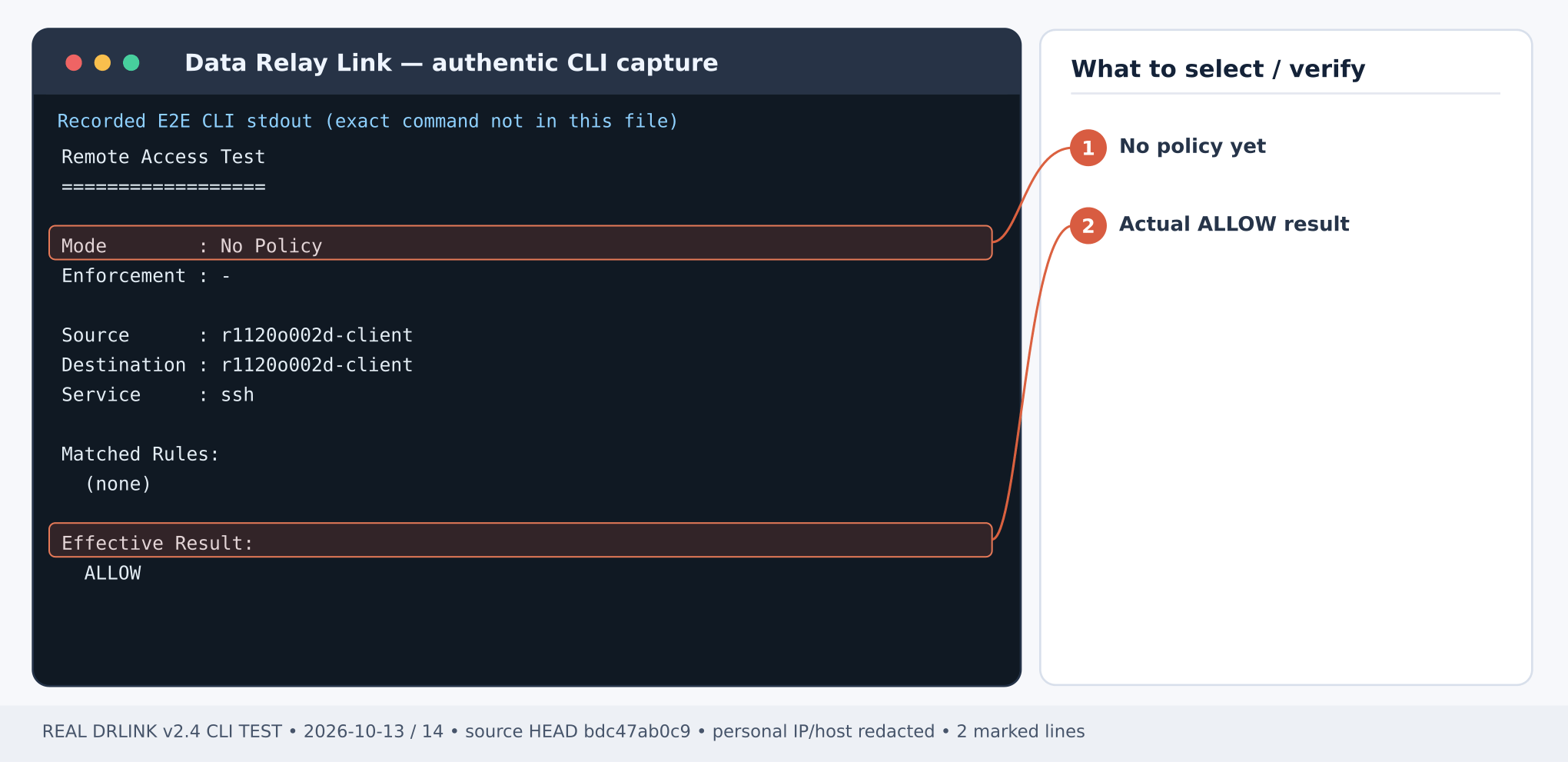
Know the Server public hostname/address. Ask the security owner whether to apply an inbound allowlistbefore creating an externally reachable service: Remote Access starts ALLOW when no policy exists.
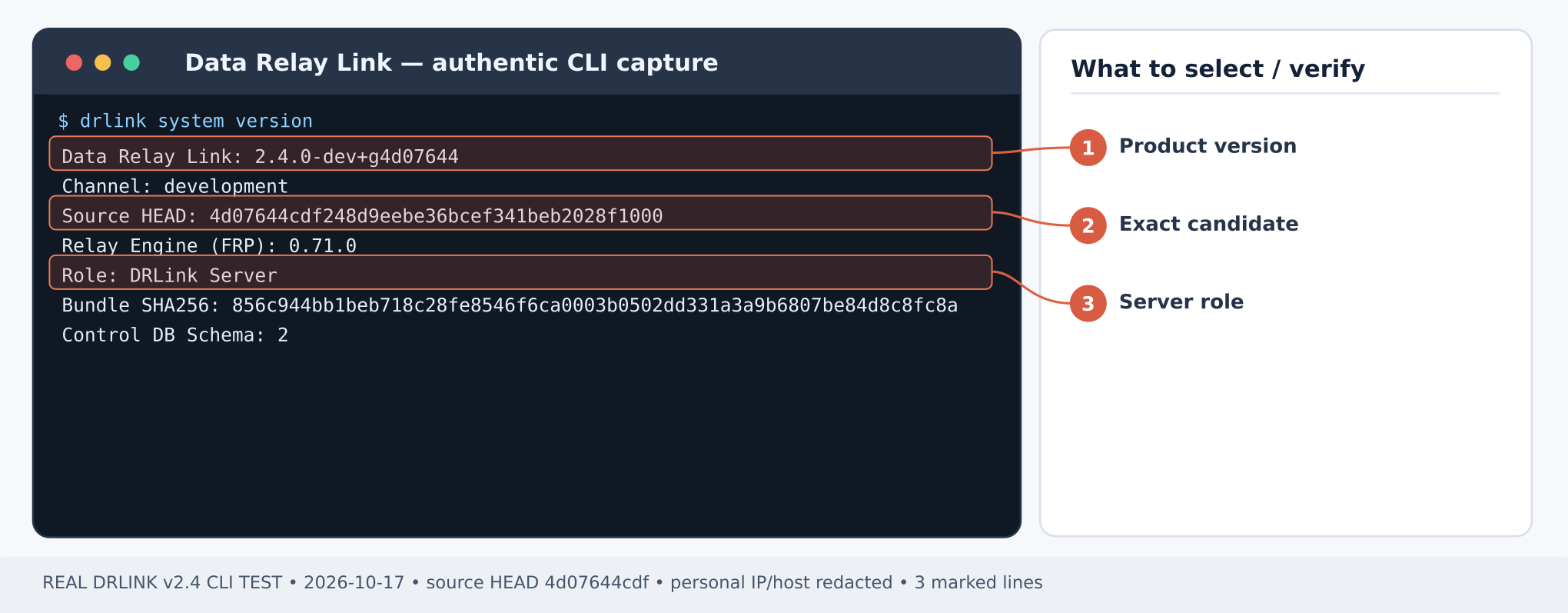
Figure 1. Captured product build identity: check product version and DRLink Server role. CLI output example; sensitive addresses and hostnames are masked.Server shell:
sudo drlink system versionsudo drlink show statussudo drlink system diagnostics
Confirm role DRLink Server and the installed product version before proceeding.
Select Linux, enter the host name/description, choose SSH only and the actual SSH port (default 22). The SSH username is optional hint metadata; blank still publishes SSH. Services selected through Zero-Touch SSH only, RDP only or Choose Remote Services automatically receive the required Service Object, Remote Service and public endpoint reservation during enrollment. Do not create the same service manually again. Inspect actual names with show remote-services on the Agent.Copy the generated one-time installation command from the enrollment result; run that exact command on the internal Linux host using its privileged terminal. Ticket URLs are credentials: do not paste them into tickets, screenshots or public logs. Do not substitute a made-up installer URL.
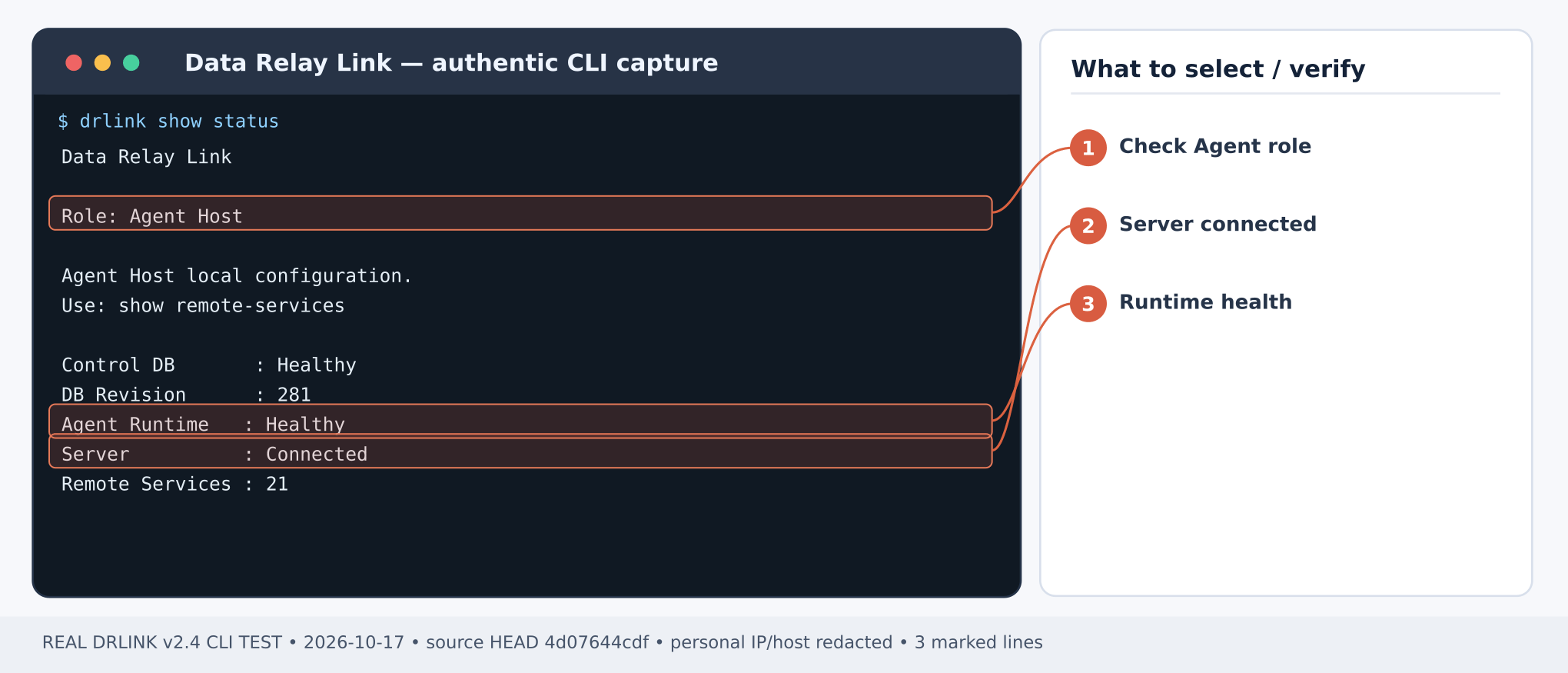
Figure 2. Captured Agent Host status: confirm local Agent role, Healthy runtime, and connected Server. CLI output example; sensitive addresses and hostnames are masked.Agent shell:
sudo drlink show statussudo drlink show agentsudo drlink system diagnostics
Confirm role Agent Host and healthy enrollment.Agent REPL: replace <actual-service-name> with the actual name returned by the list.
show remote-servicesshow remote-service <actual-service-name>
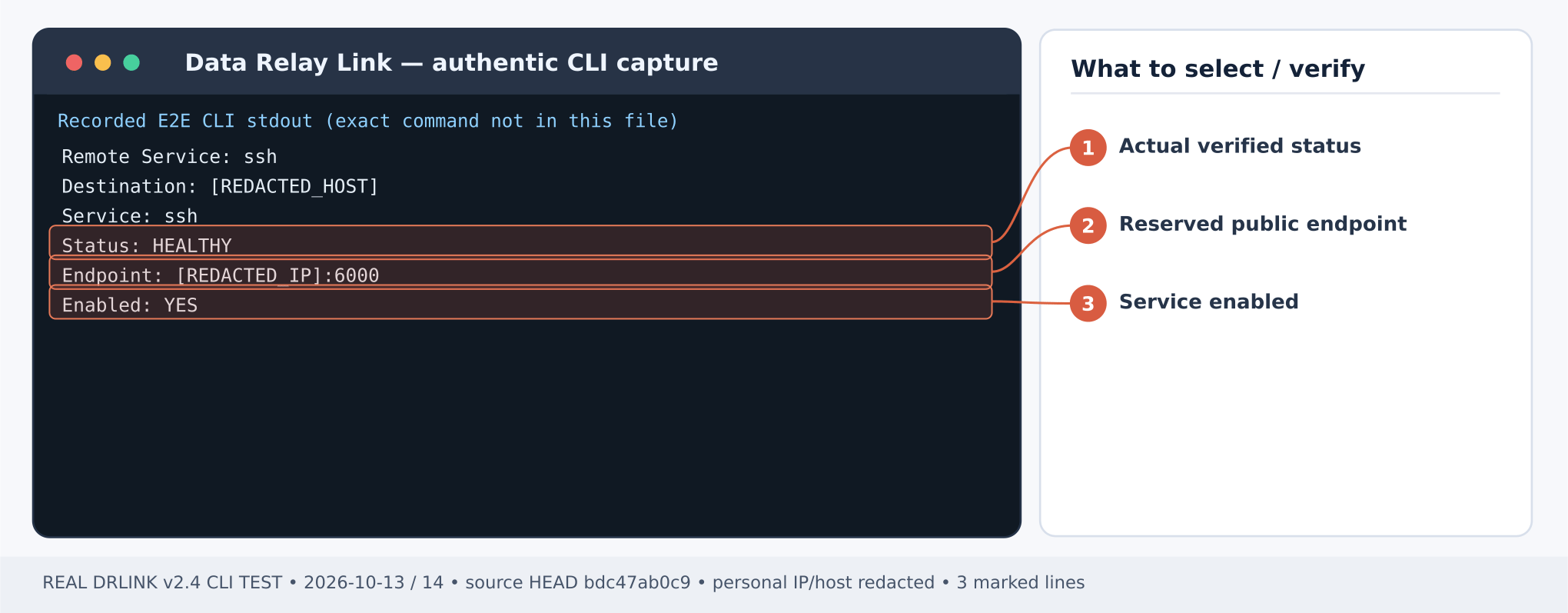
Expected: an allocated/reserved Server endpoint and a HEALTHY Remote Service when the target and runtime are verified. DEGRADED or Pending allocation requires reconnection/diagnostics; do not treat it as traffic success.
Figure 3. Real E2E service detail with HEALTHY and reserved endpoint; public address is masked. CLI output example; sensitive addresses and hostnames are masked.On the outside workstation, take the public host and reserved port from show remote-service <actual-service-name>:
Expected: host-key verification and then the SSH service’s normal authentication. Verify the target host’s SSH host-key fingerprint out of band before accepting it. The public endpoint is not a substitute for SSH login credentials.
Figure 4. Real Remote Access ALLOW result with No Policy. This illustrates the default, NOT whitelist verification. CLI output example; sensitive addresses and hostnames are masked.Server REPL:
show managed-hostsshow managed-host <managed-host-name> remote-servicesshow remote-accesssystem audit
Check that only the intended service is published and that the Remote Access policy matches the intended support origin. Run the office-allowlist scenario to reject out-of-scope inbound connections.
DEGRADED: on the Agent run system diagnostics, then system synchronize, then show remote-service <actual-service-name>. Inspect target SSH on 127.0.0.1:22 and the Agent’s outbound firewall.
SSH timeout: check public port mapping/security group and policy. The product does not open external firewalls.
Permission denied: troubleshoot the target OS SSH account/key, not DRLink enrollment.
Remove access: on the owning Agent REPL, run unset remote-service <actual-service-name> after reviewing the impact. Removal is not the same as disabling or pausing; endpoint reservation semantics differ. Do not retire the entire Managed Host to remove one SSH service.
After Agent/server reconnection, run system synchronize on the owning Agent and inspect show remote-service <actual-service-name>. HEALTHY requires verified current runtime, not a stored flag or heartbeat. Recheck the real SSH endpoint after recovery; do not re-enroll merely to clear DEGRADED.Current CLI inventory · MCP compatibility
Last modified on October 29, 2026
{"docsConfig":{"theme":"mint","$schema":"https://mintlify.com/docs.json","name":"DataRelay Link","description":"Lightweight secure connectivity for isolated and restricted networks with controlled remote access and agentless outbound egress.","colors":{"primary":"#C2410C","light":"#FB923C","dark":"#C75A00"},"logo":{"light":"https://mintcdn.com/data-relay/QdSvVfPZ7NEJSOWl/logo/light.svg?fit=max\u0026auto=format\u0026n=QdSvVfPZ7NEJSOWl\u0026q=85\u0026s=888463e35ab49f73f9b174030b3263d6","dark":"https://mintcdn.com/data-relay/QdSvVfPZ7NEJSOWl/logo/dark.svg?fit=max\u0026auto=format\u0026n=QdSvVfPZ7NEJSOWl\u0026q=85\u0026s=78944f5be2786c960ab6daaaf7ca870b","href":"https://link.datarelay.run"},"favicon":"https://mintcdn.com/data-relay/QdSvVfPZ7NEJSOWl/favicon.svg?fit=max\u0026auto=format\u0026n=QdSvVfPZ7NEJSOWl\u0026q=85\u0026s=d6f1dea7850d21b0c157e4be3317c226","appearance":{"default":"system","strict":false},"navbar":{"links":[{"href":"https://datarelay.run/","label":"DataRelay"},{"href":"https://link.datarelay.run/","label":"Link"},{"href":"https://control.datarelay.run/","label":"Control"},{"href":"https://grant.datarelay.run/","label":"Grant"},{"href":"https://engineering.datarelay.run/","label":"Engineering"},{"href":"https://github.com/datarelay-labs/datarelay-link","type":"github"}]},"search":{"prompt":"Search DataRelay Link docs..."},"seo":{"metatags":{"canonical":"https://link.datarelay.run"},"indexing":"navigable"},"metadata":{"timestamp":true},"styling":{"latex":false},"navigation":{"languages":[{"language":"en","href":""},{"language":"ko","href":"ko"}]}},"deployment":{"deploymentMetadataValue":{"subdomain":"data-relay","hasAudioNarration":false,"actualSubdomain":"data-relay","customDomains":["link.datarelay.run"],"gitSource":{"type":"github","owner":"datarelay-labs","repo":"datarelay-link-docs","deployBranch":"main","contentDirectory":"","isPrivate":false,"mountPath":"","label":""},"chroma":{"latestBuiltDeploymentHistoryId":"6ae2b51eefa5e7bcbb87bc8e","collectionId":"a1f69361-66ae-435c-96ea-5f84e3b497ae","liveDeploymentHistoryId":"6ae2b51eefa5e7bcbb87bc8e","schemaVersion":"v3"},"entitlements":{"AI_CHAT":{"status":"DISABLED"}},"buildId":"6ae2b51eefa5e7bcbb87bc8e","clientVersion":"0.0.4044","searchFilterCounts":[{"language":"en","tag":"Practical Use Cases","count":13},{"language":"ko","tag":"실습: 활용 사례","count":13},{"language":"en","tag":"Getting Started","count":11},{"language":"ko","tag":"시작하기","count":10},{"language":"en","tag":"Security \u0026 Reference","count":9},{"language":"ko","tag":"보안 \u0026 참고","count":8},{"language":"en","tag":"Operations","count":7},{"language":"ko","tag":"운영 \u0026 문제 해결","count":7},{"language":"en","tag":"Remote Services \u0026 Access","count":5},{"language":"ko","tag":"Remote Service \u0026 Access","count":5},{"language":"en","tag":"AI Access","count":4},{"language":"ko","tag":"AI Access","count":4},{"language":"en","tag":"Deployment","count":3},{"language":"en","tag":"CLI \u0026 Configuration","count":3},{"language":"en","tag":"Managed Hosts \u0026 Objects","count":3},{"language":"ko","tag":"배포","count":3},{"language":"ko","tag":"CLI \u0026 Configuration","count":3},{"language":"ko","tag":"Managed Host \u0026 Object","count":3},{"language":"en","tag":"Internet Access","count":1},{"language":"ko","tag":"Internet Access","count":1}]},"assistantConfig":{"enableAskAiButton":false,"enableStarterQuestions":false,"enableContextualStarterQuestions":false,"enableAskAiSearchBar":true},"basePath":"","hasChatPermissions":false,"hasWebMcpPermissions":false,"toggles":[{"name":"kill-isr","enabled":true,"variant":{"name":"disabled","enabled":false,"feature_enabled":true},"impressionData":false},{"name":"agent-mintlify-slack","enabled":true,"variant":{"name":"disabled","enabled":false,"feature_enabled":true},"impressionData":false},{"name":"agent-integrations-settings","enabled":true,"variant":{"name":"disabled","enabled":false,"feature_enabled":true},"impressionData":false},{"name":"automations-pr-grouping","enabled":true,"variant":{"name":"disabled","enabled":false,"feature_enabled":true},"impressionData":false},{"name":"custom-prefix","enabled":true,"variant":{"name":"disabled","enabled":false,"feature_enabled":true},"impressionData":false},{"name":"analytics-v7","enabled":true,"variant":{"name":"disabled","enabled":false,"feature_enabled":true},"impressionData":false},{"name":"user-flows-analytics","enabled":true,"variant":{"name":"disabled","enabled":false,"feature_enabled":true},"impressionData":false},{"name":"no-publish-flow","enabled":true,"variant":{"name":"disabled","enabled":false,"feature_enabled":true},"impressionData":false},{"name":"workos-onboarding","enabled":true,"variant":{"name":"disabled","enabled":false,"feature_enabled":true},"impressionData":false},{"name":"llms-txt-v2","enabled":true,"variant":{"name":"disabled","enabled":false,"feature_enabled":true},"impressionData":false},{"name":"snapshot-serving-live","enabled":true,"variant":{"name":"disabled","enabled":false,"feature_enabled":true},"impressionData":false},{"name":"stripTemperatureMiddleware","enabled":true,"variant":{"name":"disabled","enabled":false,"feature_enabled":true},"impressionData":false},{"name":"support-platform-pylon-zendesk","enabled":true,"variant":{"name":"disabled","enabled":false,"feature_enabled":true},"impressionData":false},{"name":"snapshot-serving","enabled":true,"variant":{"name":"disabled","enabled":false,"feature_enabled":true},"impressionData":false},{"name":"instant-rollback","enabled":true,"variant":{"name":"disabled","enabled":false,"feature_enabled":true},"impressionData":false},{"name":"granular-notifications-server","enabled":true,"variant":{"name":"disabled","enabled":false,"feature_enabled":true},"impressionData":false},{"name":"granular-notifications","enabled":true,"variant":{"name":"disabled","enabled":false,"feature_enabled":true},"impressionData":false},{"name":"automations-fable","enabled":true,"variant":{"name":"disabled","enabled":false,"feature_enabled":true},"impressionData":false},{"name":"fixed-ai-action-pricing","enabled":true,"variant":{"name":"disabled","enabled":false,"feature_enabled":true},"impressionData":false},{"name":"automation-resolve-merge-conflict","enabled":true,"variant":{"name":"disabled","enabled":false,"feature_enabled":true},"impressionData":false},{"name":"scoped-publishing","enabled":true,"variant":{"name":"disabled","enabled":false,"feature_enabled":true},"impressionData":false},{"name":"mintql","enabled":true,"variant":{"name":"disabled","enabled":false,"feature_enabled":true},"impressionData":false},{"name":"page-level-analytics","enabled":true,"variant":{"name":"disabled","enabled":false,"feature_enabled":true},"impressionData":false},{"name":"editor-version-history-v2","enabled":true,"variant":{"name":"disabled","enabled":false,"feature_enabled":true},"impressionData":false},{"name":"billing-page-v2","enabled":true,"variant":{"name":"disabled","enabled":false,"feature_enabled":true},"impressionData":false},{"name":"full-page-search","enabled":true,"variant":{"name":"disabled","enabled":false,"feature_enabled":true},"impressionData":false},{"name":"workspace-projects","enabled":true,"variant":{"name":"disabled","enabled":false,"feature_enabled":true},"impressionData":false},{"name":"assistant-v5","enabled":true,"variant":{"name":"disabled","enabled":false,"feature_enabled":true},"impressionData":false},{"name":"byok-sep-25","enabled":true,"variant":{"name":"disabled","enabled":false,"feature_enabled":true},"impressionData":false},{"name":"fork-pr-previews","enabled":true,"variant":{"name":"disabled","enabled":false,"feature_enabled":true},"impressionData":false},{"name":"revalidation-jwt","enabled":true,"variant":{"name":"disabled","enabled":false,"feature_enabled":true},"impressionData":false},{"name":"vite-origin","enabled":true,"variant":{"name":"disabled","enabled":false,"feature_enabled":true},"impressionData":false},{"name":"billing-updated-9-15","enabled":true,"variant":{"name":"disabled","enabled":false,"feature_enabled":true},"impressionData":false},{"name":"workos-sso-scim","enabled":true,"variant":{"name":"disabled","enabled":false,"feature_enabled":true},"impressionData":false},{"name":"hobby-abuse-scan","enabled":true,"variant":{"name":"disabled","enabled":false,"feature_enabled":true},"impressionData":false},{"name":"dashboard-inbox","enabled":true,"variant":{"name":"disabled","enabled":false,"feature_enabled":true},"impressionData":false},{"name":"workos-signup","enabled":true,"variant":{"name":"disabled","enabled":false,"feature_enabled":true},"impressionData":false},{"name":"turbopuffer-dual-write","enabled":true,"variant":{"name":"disabled","enabled":false,"feature_enabled":true},"impressionData":false},{"name":"workos-enabled","enabled":true,"variant":{"name":"disabled","enabled":false,"feature_enabled":true},"impressionData":false},{"name":"approve-review-flow","enabled":true,"variant":{"name":"disabled","enabled":false,"feature_enabled":true},"impressionData":false},{"name":"sso-setup-deadline-banner","enabled":true,"variant":{"name":"disabled","enabled":false,"feature_enabled":true},"impressionData":false}],"googleFontsInlined":false},"customCss":[{"filePath":"style.css","content":":root{--dr-brand:#C2410C;--dr-brand-hover:#9A3412;--dr-brand-soft:#FFF7ED;--dr-product-accent:#0369A1;--dr-bg:#FFFFFF;--dr-surface:#FFFFFF;--dr-surface-subtle:#FAFAF9;--dr-ink:#1C1917;--dr-muted:#57534E;--dr-border:#E7E5E4;--dr-border-strong:#D6D3D1;--dr-shadow-sm:0 1px 2px rgb(28 25 23 / 0.05);--dr-shadow-md:0 14px 34px rgb(28 25 23 / 0.09);--dr-radius-sm:10px;--dr-radius-md:16px;--dr-radius-lg:24px}.dark{--dr-brand:#FB923C;--dr-brand-hover:#FDBA74;--dr-brand-soft:#2A160D;--dr-product-accent:#38BDF8;--dr-bg:#0C0A09;--dr-surface:#141210;--dr-surface-subtle:#1C1917;--dr-ink:#FAFAF9;--dr-muted:#C7C2BC;--dr-border:#292524;--dr-border-strong:#44403C;--dr-shadow-sm:0 1px 2px rgb(0 0 0 / 0.25);--dr-shadow-md:0 18px 42px rgb(0 0 0 / 0.32)}html{scroll-behavior:smooth}body{text-rendering:optimizeLegibility;-webkit-font-smoothing:antialiased}#navbar-transition{background:rgb(255 255 255/.9)!important;border-color:rgb(120 113 108/.16)!important;backdrop-filter:blur(16px) saturate(150%);-webkit-backdrop-filter:blur(16px) saturate(150%)}.dark #navbar-transition{background:rgb(12 10 9/.88)!important;border-color:rgb(231 229 228/.1)!important}.nav-logo{height:2rem!important}body,main h1,main h2{color:var(--dr-ink)}main h1{letter-spacing:-.038em;font-weight:760;line-height:1.08}main h2{letter-spacing:-.025em;font-weight:700}main h3{letter-spacing:-.015em}main li,main p{line-height:1.72}main blockquote{border-left:3px solid var(--dr-product-accent)!important;background:var(--dr-surface-subtle);border-radius:0 var(--dr-radius-sm) var(--dr-radius-sm) 0;padding:.8rem 1rem}main pre{border:1px solid var(--dr-border)!important;border-radius:var(--dr-radius-md)!important;box-shadow:var(--dr-shadow-sm)}main table{border-color:var(--dr-border)!important;border-radius:var(--dr-radius-sm)}.dr-hero-kicker{display:inline-flex;align-items:center;gap:.5rem;margin:0 0 1rem;padding:.42rem .7rem;border:1px solid #fed7aa;border-radius:999px;background:#fff7ed;color:#9a3412;font-size:.72rem;font-weight:760;letter-spacing:.12em;text-transform:uppercase}.dark .dr-hero-kicker{border-color:#7c2d12;background:#2a160d;color:#fdba74}.dr-hero-kicker+h1{max-width:950px;margin-top:0!important;font-size:clamp(2.7rem,6vw,4.85rem)!important;line-height:.98!important;letter-spacing:-.055em!important}.dr-hero-actions{display:flex;flex-wrap:wrap;gap:.7rem;margin:1.55rem 0 1.35rem}.dr-button{display:inline-flex;min-height:2.75rem;align-items:center;justify-content:center;border-radius:.72rem;padding:.68rem 1rem;border:1px solid transparent;font-size:.9rem;font-weight:680;line-height:1;text-decoration:none!important;transition:transform 150ms ease,border-color 150ms ease,background-color 150ms ease,box-shadow 150ms ease}.dr-button:hover{transform:translateY(-1px)}.dr-button-primary{background:var(--dr-brand);color:#fff!important;box-shadow:0 6px 18px rgb(194 65 12/.2)}.dr-button-primary:hover{background:var(--dr-brand-hover)}.dark .dr-button-primary{color:#1c1917!important}.dr-button-secondary{background:var(--dr-surface);color:var(--dr-ink)!important;border-color:var(--dr-border-strong);box-shadow:var(--dr-shadow-sm)}.dr-button-secondary:hover{border-color:var(--dr-product-accent)}.dr-family-strip{display:flex;align-items:center;gap:.35rem;margin:0 0 2rem;padding:.4rem;width:fit-content;max-width:100%;overflow-x:auto;border:1px solid var(--dr-border);border-radius:.85rem;background:var(--dr-surface-subtle);scrollbar-width:none}.dr-family-strip::-webkit-scrollbar{display:none}.dr-family-strip .dr-family-current,.dr-family-strip a{display:inline-flex;align-items:center;min-height:2rem;padding:.42rem .68rem;border-radius:.56rem;white-space:nowrap;color:var(--dr-muted)!important;font-size:.78rem;font-weight:650;text-decoration:none!important}.dr-family-strip a:hover{color:var(--dr-ink)!important;background:var(--dr-surface)}.dr-family-strip .dr-family-current{color:#fff!important;background:var(--dr-product-accent);box-shadow:var(--dr-shadow-sm)}.dark .dr-family-strip .dr-family-current{color:#0c0a09!important}.card{border-color:var(--dr-border)!important;border-radius:var(--dr-radius-md)!important;background:var(--dr-surface)!important;box-shadow:var(--dr-shadow-sm);transition:transform 160ms ease,box-shadow 160ms ease,border-color 160ms ease!important}.card:hover{transform:translateY(-2px);border-color:var(--dr-product-accent)!important;box-shadow:var(--dr-shadow-md)}[data-component-part=card-title]{letter-spacing:-.012em}[data-component-part=card-icon]{color:var(--dr-product-accent)!important}.callout{border-radius:var(--dr-radius-md)!important}footer{border-top-color:var(--dr-border)!important}:where(a, button, input, select, textarea):focus-visible{outline:3px solid var(--dr-product-accent)!important;outline-offset:3px!important}@media (max-width:768px){.dr-hero-kicker+h1{font-size:clamp(2.35rem,13vw,3.55rem)!important}.dr-hero-actions{display:grid;grid-template-columns:1fr}.dr-button,.dr-family-strip{width:100%}}@media (prefers-reduced-motion:reduce){html{scroll-behavior:auto}.card,.dr-button{transition:none!important}.card:hover,.dr-button:hover{transform:none}}"}],"page":{"pagePath":"use-cases/remote-ssh","slug":"/use-cases/remote-ssh","pageMetadata":{"title":"Use case: Remote SSH through NAT","description":"Enroll one Linux host and reach only its SSH service through the DRLink Server.","href":"/use-cases/remote-ssh"},"description":{"compiledSource":"\"use strict\";\nconst {jsx: _jsx} = arguments[0];\nconst {useMDXComponents: _provideComponents} = arguments[0];\nfunction _createMdxContent(props) {\n const _components = {\n p: \"p\",\n ..._provideComponents(),\n ...props.components\n };\n return _jsx(_components.p, {\n children: \"Enroll one Linux host and reach only its SSH service through the DRLink Server.\"\n });\n}\nfunction MDXContent(props = {}) {\n const {wrapper: MDXLayout} = {\n ..._provideComponents(),\n ...props.components\n };\n return MDXLayout ? _jsx(MDXLayout, {\n ...props,\n children: _jsx(_createMdxContent, {\n ...props\n })\n }) : _createMdxContent(props);\n}\nreturn {\n default: MDXContent\n};\n","frontmatter":{},"scope":{}},"pageType":"default","mdx":{"mdxSource":{"compiledSource":"\"use strict\";const{Fragment:_Fragment,jsx:_jsx,jsxs:_jsxs}=arguments[0];const{useMDXComponents:_provideComponents}=arguments[0];function _createMdxContent(props){const _components={a:`a`,code:`code`,em:`em`,li:`li`,p:`p`,pre:`pre`,span:`span`,strong:`strong`,ul:`ul`,..._provideComponents(),...props.components},{CodeBlock,Heading,OptimizedImage}=_components;if(!CodeBlock)_missingMdxReference(`CodeBlock`,true);if(!Heading)_missingMdxReference(`Heading`,true);if(!OptimizedImage)_missingMdxReference(`OptimizedImage`,true);return _jsxs(_Fragment,{children:[_jsx(Heading,{level:`1`,id:`remote-ssh-to-a-machine-behind-nat`,children:`Remote SSH to a machine behind NAT`}),`\n`,_jsxs(_components.p,{children:[_jsx(_components.strong,{children:`Outcome:`}),` A support engineer outside the customer network connects to an internal Linux host’s SSH port using a reserved public endpoint, without joining the LAN with a VPN.`]}),`\n`,_jsxs(_components.p,{children:[_jsx(_components.strong,{children:`Example topology:`}),` outside workstation → DRLink Server (public address) → outbound Agent tunnel → Agent Host at 10.10.20.15:22.`]}),`\n`,_jsx(Heading,{level:`2`,id:`prerequisites`,children:`Prerequisites`}),`\n`,_jsxs(_components.ul,{children:[`\n`,_jsxs(_components.li,{children:[_jsx(_components.a,{href:`/getting-started/server-installation`,children:`Install the Linux DRLink Server`}),` using the product installer and open the necessary externally managed firewall paths. The Server and Agent must be able to complete enrollment.`]}),`\n`,_jsxs(_components.li,{children:[`The internal machine has a working SSH daemon, an existing authorized OS account and outbound reachability to the DRLink Server. DRLink `,_jsx(_components.strong,{children:`does not create`}),` SSH users/keys or enable sshd.`]}),`\n`,_jsxs(_components.li,{children:[`Know the Server public hostname/address. Ask the security owner whether to `,_jsx(_components.a,{href:`/use-cases/office-allowlist`,children:`apply an inbound allowlist`}),` `,_jsx(_components.strong,{children:`before`}),` creating an externally reachable service: Remote Access starts ALLOW when no policy exists.`]}),`\n`]}),`\n`,_jsx(Heading,{level:`2`,id:`step-1-—-verify-the-server`,children:`Step 1 — verify the Server`}),`\n`,_jsx(OptimizedImage,{src:`https://mintcdn.com/data-relay/RzAl7zFhuZCRSIKj/images/cli-captures/server-version.png?fit=max\u0026auto=format\u0026n=RzAl7zFhuZCRSIKj\u0026q=85\u0026s=d8f38d05298dbc579aa0e9b5d4515f32`,alt:`Real Data Relay Link CLI capture — Captured product build identity: check product version and DRLink Server role.`,\"data-og-width\":`2040`,width:`2040`,\"data-og-height\":`797`,height:`797`,\"data-path\":`images/cli-captures/server-version.png`,\"data-optimize\":`true`,\"data-opv\":`3`,srcset:`https://mintcdn.com/data-relay/RzAl7zFhuZCRSIKj/images/cli-captures/server-version.png?w=280\u0026fit=max\u0026auto=format\u0026n=RzAl7zFhuZCRSIKj\u0026q=85\u0026s=4416f16d33d7e0e305e3f10187812fcb 280w, https://mintcdn.com/data-relay/RzAl7zFhuZCRSIKj/images/cli-captures/server-version.png?w=560\u0026fit=max\u0026auto=format\u0026n=RzAl7zFhuZCRSIKj\u0026q=85\u0026s=1d6fa0c3584ef8eef6fd38cecd5e2c35 560w, https://mintcdn.com/data-relay/RzAl7zFhuZCRSIKj/images/cli-captures/server-version.png?w=840\u0026fit=max\u0026auto=format\u0026n=RzAl7zFhuZCRSIKj\u0026q=85\u0026s=54a7ad5edec759c583d444c98de5256b 840w, https://mintcdn.com/data-relay/RzAl7zFhuZCRSIKj/images/cli-captures/server-version.png?w=1100\u0026fit=max\u0026auto=format\u0026n=RzAl7zFhuZCRSIKj\u0026q=85\u0026s=73e94b281f655e746f3474362fb111e2 1100w, https://mintcdn.com/data-relay/RzAl7zFhuZCRSIKj/images/cli-captures/server-version.png?w=1650\u0026fit=max\u0026auto=format\u0026n=RzAl7zFhuZCRSIKj\u0026q=85\u0026s=e7ec1e4e3636dd5d00d3709db8a530bb 1650w, https://mintcdn.com/data-relay/RzAl7zFhuZCRSIKj/images/cli-captures/server-version.png?w=2500\u0026fit=max\u0026auto=format\u0026n=RzAl7zFhuZCRSIKj\u0026q=85\u0026s=6d4d668ec41255f0b9cb83b1749a091a 2500w`}),`\n`,_jsx(_components.p,{children:_jsx(_components.em,{children:`Figure 1. Captured product build identity: check product version and DRLink Server role. CLI output example; sensitive addresses and hostnames are masked.`})}),`\n`,_jsx(_components.p,{children:_jsx(_components.strong,{children:`Server shell:`})}),`\n`,_jsx(CodeBlock,{filename:``,numberOfLines:`3`,language:`shellscript`,children:_jsx(_components.pre,{className:`shiki shiki-themes github-light-default dark-plus`,style:{backgroundColor:`#ffffff`,\"--shiki-dark-bg\":`#0B0C0E`,color:`#1f2328`,\"--shiki-dark\":`#D4D4D4`},language:`shellscript`,children:_jsxs(_components.code,{language:`shellscript`,numberOfLines:`3`,children:[_jsxs(_components.span,{className:`line`,children:[_jsx(_components.span,{style:{color:`#953800`,\"--shiki-dark\":`#DCDCAA`},children:`sudo`}),_jsx(_components.span,{style:{color:`#0A3069`,\"--shiki-dark\":`#CE9178`},children:` drlink`}),_jsx(_components.span,{style:{color:`#0A3069`,\"--shiki-dark\":`#CE9178`},children:` system`}),_jsx(_components.span,{style:{color:`#0A3069`,\"--shiki-dark\":`#CE9178`},children:` version`})]}),`\n`,_jsxs(_components.span,{className:`line`,children:[_jsx(_components.span,{style:{color:`#953800`,\"--shiki-dark\":`#DCDCAA`},children:`sudo`}),_jsx(_components.span,{style:{color:`#0A3069`,\"--shiki-dark\":`#CE9178`},children:` drlink`}),_jsx(_components.span,{style:{color:`#0A3069`,\"--shiki-dark\":`#CE9178`},children:` show`}),_jsx(_components.span,{style:{color:`#0A3069`,\"--shiki-dark\":`#CE9178`},children:` status`})]}),`\n`,_jsxs(_components.span,{className:`line`,children:[_jsx(_components.span,{style:{color:`#953800`,\"--shiki-dark\":`#DCDCAA`},children:`sudo`}),_jsx(_components.span,{style:{color:`#0A3069`,\"--shiki-dark\":`#CE9178`},children:` drlink`}),_jsx(_components.span,{style:{color:`#0A3069`,\"--shiki-dark\":`#CE9178`},children:` system`}),_jsx(_components.span,{style:{color:`#0A3069`,\"--shiki-dark\":`#CE9178`},children:` diagnostics`})]}),`\n`]})})}),`\n`,_jsxs(_components.p,{children:[`Confirm role `,_jsx(_components.strong,{children:`DRLink Server`}),` and the installed product version before proceeding.`]}),`\n`,_jsx(Heading,{level:`2`,id:`step-2-—-issue-ssh-zero-touch-and-enroll`,children:`Step 2 — issue SSH Zero-Touch and enroll`}),`\n`,_jsx(_components.p,{children:_jsx(_components.strong,{children:`Server REPL:`})}),`\n`,_jsx(CodeBlock,{filename:``,numberOfLines:`3`,language:`text`,children:_jsx(_components.pre,{className:`shiki shiki-themes github-light-default dark-plus`,style:{backgroundColor:`#ffffff`,\"--shiki-dark-bg\":`#0B0C0E`,color:`#1f2328`,\"--shiki-dark\":`#D4D4D4`},language:`text`,children:_jsxs(_components.code,{language:`text`,numberOfLines:`3`,children:[_jsx(_components.span,{className:`line`,children:_jsx(_components.span,{children:`set enrollment zero-touch`})}),`\n`,_jsx(_components.span,{className:`line`,children:_jsx(_components.span,{children:`show enrollments`})}),`\n`,_jsx(_components.span,{className:`line`,children:_jsx(_components.span,{})})]})})}),`\n`,_jsxs(_components.p,{children:[`Select `,_jsx(_components.strong,{children:`Linux`}),`, enter the host name/description, choose `,_jsx(_components.strong,{children:`SSH only`}),` and the actual SSH port (default `,_jsx(_components.strong,{children:`22`}),`). The SSH username is optional hint metadata; blank still publishes SSH. Services selected through Zero-Touch `,_jsx(_components.strong,{children:`SSH only`}),`, `,_jsx(_components.strong,{children:`RDP only`}),` or `,_jsx(_components.strong,{children:`Choose Remote Services`}),` automatically receive the required Service Object, Remote Service and public endpoint reservation during enrollment. Do not create the same service manually again. Inspect actual names with `,_jsx(_components.code,{children:`show remote-services`}),` on the Agent.`]}),`\n`,_jsxs(_components.p,{children:[`Copy the generated `,_jsx(_components.strong,{children:`one-time`}),` installation command from the enrollment result; run that `,_jsx(_components.strong,{children:`exact`}),` command on the internal Linux host using its privileged terminal. Ticket URLs are credentials: do not paste them into tickets, screenshots or public logs. Do not substitute a made-up installer URL.`]}),`\n`,_jsx(Heading,{level:`2`,id:`step-3-—-inspect-the-agent-and-automatic-service`,children:`Step 3 — inspect the Agent and automatic service`}),`\n`,_jsx(OptimizedImage,{src:`https://mintcdn.com/data-relay/RzAl7zFhuZCRSIKj/images/cli-captures/agent-status.png?fit=max\u0026auto=format\u0026n=RzAl7zFhuZCRSIKj\u0026q=85\u0026s=ca4c48ac0aad648d4a3024c6fdbc417a`,alt:`Real Data Relay Link CLI capture — Captured Agent Host status: confirm local Agent role, Healthy runtime, and connected Server.`,\"data-og-width\":`2040`,width:`2040`,\"data-og-height\":`875`,height:`875`,\"data-path\":`images/cli-captures/agent-status.png`,\"data-optimize\":`true`,\"data-opv\":`3`,srcset:`https://mintcdn.com/data-relay/RzAl7zFhuZCRSIKj/images/cli-captures/agent-status.png?w=280\u0026fit=max\u0026auto=format\u0026n=RzAl7zFhuZCRSIKj\u0026q=85\u0026s=3a1a4f1776a2b94d33e7fd7bce54d9f9 280w, https://mintcdn.com/data-relay/RzAl7zFhuZCRSIKj/images/cli-captures/agent-status.png?w=560\u0026fit=max\u0026auto=format\u0026n=RzAl7zFhuZCRSIKj\u0026q=85\u0026s=4b30520b43966ea4d2bd2330b2130bc7 560w, https://mintcdn.com/data-relay/RzAl7zFhuZCRSIKj/images/cli-captures/agent-status.png?w=840\u0026fit=max\u0026auto=format\u0026n=RzAl7zFhuZCRSIKj\u0026q=85\u0026s=53b609111feda60b4f745b7e7f1de647 840w, https://mintcdn.com/data-relay/RzAl7zFhuZCRSIKj/images/cli-captures/agent-status.png?w=1100\u0026fit=max\u0026auto=format\u0026n=RzAl7zFhuZCRSIKj\u0026q=85\u0026s=b2cf0dc9b20610177f28b6ed411b9773 1100w, https://mintcdn.com/data-relay/RzAl7zFhuZCRSIKj/images/cli-captures/agent-status.png?w=1650\u0026fit=max\u0026auto=format\u0026n=RzAl7zFhuZCRSIKj\u0026q=85\u0026s=3c4dfa7b1c21ab5d6e81dcd8e82e9a5d 1650w, https://mintcdn.com/data-relay/RzAl7zFhuZCRSIKj/images/cli-captures/agent-status.png?w=2500\u0026fit=max\u0026auto=format\u0026n=RzAl7zFhuZCRSIKj\u0026q=85\u0026s=0449dfe486212a095761fdd4e44ac248 2500w`}),`\n`,_jsx(_components.p,{children:_jsx(_components.em,{children:`Figure 2. Captured Agent Host status: confirm local Agent role, Healthy runtime, and connected Server. CLI output example; sensitive addresses and hostnames are masked.`})}),`\n`,_jsx(_components.p,{children:_jsx(_components.strong,{children:`Agent shell:`})}),`\n`,_jsx(CodeBlock,{filename:``,numberOfLines:`3`,language:`shellscript`,children:_jsx(_components.pre,{className:`shiki shiki-themes github-light-default dark-plus`,style:{backgroundColor:`#ffffff`,\"--shiki-dark-bg\":`#0B0C0E`,color:`#1f2328`,\"--shiki-dark\":`#D4D4D4`},language:`shellscript`,children:_jsxs(_components.code,{language:`shellscript`,numberOfLines:`3`,children:[_jsxs(_components.span,{className:`line`,children:[_jsx(_components.span,{style:{color:`#953800`,\"--shiki-dark\":`#DCDCAA`},children:`sudo`}),_jsx(_components.span,{style:{color:`#0A3069`,\"--shiki-dark\":`#CE9178`},children:` drlink`}),_jsx(_components.span,{style:{color:`#0A3069`,\"--shiki-dark\":`#CE9178`},children:` show`}),_jsx(_components.span,{style:{color:`#0A3069`,\"--shiki-dark\":`#CE9178`},children:` status`})]}),`\n`,_jsxs(_components.span,{className:`line`,children:[_jsx(_components.span,{style:{color:`#953800`,\"--shiki-dark\":`#DCDCAA`},children:`sudo`}),_jsx(_components.span,{style:{color:`#0A3069`,\"--shiki-dark\":`#CE9178`},children:` drlink`}),_jsx(_components.span,{style:{color:`#0A3069`,\"--shiki-dark\":`#CE9178`},children:` show`}),_jsx(_components.span,{style:{color:`#0A3069`,\"--shiki-dark\":`#CE9178`},children:` agent`})]}),`\n`,_jsxs(_components.span,{className:`line`,children:[_jsx(_components.span,{style:{color:`#953800`,\"--shiki-dark\":`#DCDCAA`},children:`sudo`}),_jsx(_components.span,{style:{color:`#0A3069`,\"--shiki-dark\":`#CE9178`},children:` drlink`}),_jsx(_components.span,{style:{color:`#0A3069`,\"--shiki-dark\":`#CE9178`},children:` system`}),_jsx(_components.span,{style:{color:`#0A3069`,\"--shiki-dark\":`#CE9178`},children:` diagnostics`})]}),`\n`]})})}),`\n`,_jsxs(_components.p,{children:[`Confirm role `,_jsx(_components.strong,{children:`Agent Host`}),` and healthy enrollment.`]}),`\n`,_jsxs(_components.p,{children:[_jsx(_components.strong,{children:`Agent REPL:`}),` replace `,_jsx(_components.code,{children:`\u003cactual-service-name>`}),` with the actual name returned by the list.`]}),`\n`,_jsx(CodeBlock,{filename:``,numberOfLines:`3`,language:`text`,children:_jsx(_components.pre,{className:`shiki shiki-themes github-light-default dark-plus`,style:{backgroundColor:`#ffffff`,\"--shiki-dark-bg\":`#0B0C0E`,color:`#1f2328`,\"--shiki-dark\":`#D4D4D4`},language:`text`,children:_jsxs(_components.code,{language:`text`,numberOfLines:`3`,children:[_jsx(_components.span,{className:`line`,children:_jsx(_components.span,{children:`show remote-services`})}),`\n`,_jsx(_components.span,{className:`line`,children:_jsx(_components.span,{children:`show remote-service \u003cactual-service-name>`})}),`\n`,_jsx(_components.span,{className:`line`,children:_jsx(_components.span,{})})]})})}),`\n`,_jsxs(_components.p,{children:[`Expected: an allocated/reserved Server endpoint and a `,_jsx(_components.strong,{children:`HEALTHY`}),` Remote Service when the target and runtime are verified. `,_jsx(_components.strong,{children:`DEGRADED`}),` or `,_jsx(_components.strong,{children:`Pending allocation`}),` requires reconnection/diagnostics; do not treat it as traffic success.`]}),`\n`,_jsx(Heading,{level:`2`,id:`step-4-—-prove-real-ssh`,children:`Step 4 — prove real SSH`}),`\n`,_jsx(OptimizedImage,{src:`https://mintcdn.com/data-relay/RzAl7zFhuZCRSIKj/images/cli-captures/ssh-service-healthy.png?fit=max\u0026auto=format\u0026n=RzAl7zFhuZCRSIKj\u0026q=85\u0026s=85c9d79c1524bb4cc0f421c7e0bba111`,alt:`Real Data Relay Link CLI capture — Real E2E service detail with HEALTHY and reserved endpoint; public address is masked.`,\"data-og-width\":`2040`,width:`2040`,\"data-og-height\":`797`,height:`797`,\"data-path\":`images/cli-captures/ssh-service-healthy.png`,\"data-optimize\":`true`,\"data-opv\":`3`,srcset:`https://mintcdn.com/data-relay/RzAl7zFhuZCRSIKj/images/cli-captures/ssh-service-healthy.png?w=280\u0026fit=max\u0026auto=format\u0026n=RzAl7zFhuZCRSIKj\u0026q=85\u0026s=8438a6120989c51ba33571a9ad80c84d 280w, https://mintcdn.com/data-relay/RzAl7zFhuZCRSIKj/images/cli-captures/ssh-service-healthy.png?w=560\u0026fit=max\u0026auto=format\u0026n=RzAl7zFhuZCRSIKj\u0026q=85\u0026s=5e3ba10f5d5ca9c2503dda5083759b29 560w, https://mintcdn.com/data-relay/RzAl7zFhuZCRSIKj/images/cli-captures/ssh-service-healthy.png?w=840\u0026fit=max\u0026auto=format\u0026n=RzAl7zFhuZCRSIKj\u0026q=85\u0026s=b739a937be117a5fb93fbf0b1a0a6c94 840w, https://mintcdn.com/data-relay/RzAl7zFhuZCRSIKj/images/cli-captures/ssh-service-healthy.png?w=1100\u0026fit=max\u0026auto=format\u0026n=RzAl7zFhuZCRSIKj\u0026q=85\u0026s=89bf04a1c3b078eb097769f6aebf12db 1100w, https://mintcdn.com/data-relay/RzAl7zFhuZCRSIKj/images/cli-captures/ssh-service-healthy.png?w=1650\u0026fit=max\u0026auto=format\u0026n=RzAl7zFhuZCRSIKj\u0026q=85\u0026s=8d36c0766df4bfc1463ddae0395b7c23 1650w, https://mintcdn.com/data-relay/RzAl7zFhuZCRSIKj/images/cli-captures/ssh-service-healthy.png?w=2500\u0026fit=max\u0026auto=format\u0026n=RzAl7zFhuZCRSIKj\u0026q=85\u0026s=4ec914d1338b8f09f6175140e29c088d 2500w`}),`\n`,_jsx(_components.p,{children:_jsx(_components.em,{children:`Figure 3. Real E2E service detail with HEALTHY and reserved endpoint; public address is masked. CLI output example; sensitive addresses and hostnames are masked.`})}),`\n`,_jsxs(_components.p,{children:[`On the `,_jsx(_components.strong,{children:`outside workstation`}),`, take the public host and reserved port from `,_jsx(_components.code,{children:`show remote-service \u003cactual-service-name>`}),`:`]}),`\n`,_jsx(CodeBlock,{filename:``,numberOfLines:`1`,language:`shellscript`,children:_jsx(_components.pre,{className:`shiki shiki-themes github-light-default dark-plus`,style:{backgroundColor:`#ffffff`,\"--shiki-dark-bg\":`#0B0C0E`,color:`#1f2328`,\"--shiki-dark\":`#D4D4D4`},language:`shellscript`,children:_jsxs(_components.code,{language:`shellscript`,numberOfLines:`1`,children:[_jsxs(_components.span,{className:`line`,children:[_jsx(_components.span,{style:{color:`#953800`,\"--shiki-dark\":`#DCDCAA`},children:`ssh`}),_jsx(_components.span,{style:{color:`#0550AE`,\"--shiki-dark\":`#569CD6`},children:` -p`}),_jsx(_components.span,{style:{color:`#CF222E`,\"--shiki-dark\":`#D4D4D4`},children:` \u003c`}),_jsx(_components.span,{style:{color:`#0A3069`,\"--shiki-dark\":`#CE9178`},children:`reserved-public-por`}),_jsx(_components.span,{style:{color:`#0A3069`,\"--shiki-dark\":`#CE9178`},children:`t`}),_jsx(_components.span,{style:{color:`#CF222E`,\"--shiki-dark\":`#D4D4D4`},children:`>`}),_jsx(_components.span,{style:{color:`#CF222E`,\"--shiki-dark\":`#D4D4D4`},children:` \u003c`}),_jsx(_components.span,{style:{color:`#0A3069`,\"--shiki-dark\":`#CE9178`},children:`existing-os-use`}),_jsx(_components.span,{style:{color:`#0A3069`,\"--shiki-dark\":`#CE9178`},children:`r`}),_jsx(_components.span,{style:{color:`#CF222E`,\"--shiki-dark\":`#D4D4D4`},children:`>`}),_jsx(_components.span,{style:{color:`#0A3069`,\"--shiki-dark\":`#CE9178`},children:`@`}),_jsx(_components.span,{style:{color:`#CF222E`,\"--shiki-dark\":`#D4D4D4`},children:`\u003c`}),_jsx(_components.span,{style:{color:`#0A3069`,\"--shiki-dark\":`#CE9178`},children:`public-drlink-hos`}),_jsx(_components.span,{style:{color:`#0A3069`,\"--shiki-dark\":`#CE9178`},children:`t`}),_jsx(_components.span,{style:{color:`#CF222E`,\"--shiki-dark\":`#D4D4D4`},children:`>`})]}),`\n`]})})}),`\n`,_jsx(_components.p,{children:`Expected: host-key verification and then the SSH service’s normal authentication. Verify the target host’s SSH host-key fingerprint out of band before accepting it. The public endpoint is not a substitute for SSH login credentials.`}),`\n`,_jsx(Heading,{level:`2`,id:`step-5-—-verify-server-inventory-and-security`,children:`Step 5 — verify server inventory and security`}),`\n`,_jsx(OptimizedImage,{src:`https://mintcdn.com/data-relay/RzAl7zFhuZCRSIKj/images/cli-captures/remote-test-allow.png?fit=max\u0026auto=format\u0026n=RzAl7zFhuZCRSIKj\u0026q=85\u0026s=d524f3779e4b338dd666a2db1c8ef0c7`,alt:`Real Data Relay Link CLI capture — Real Remote Access ALLOW result with No Policy. This illustrates the default, NOT whitelist verification.`,\"data-og-width\":`2040`,width:`2040`,\"data-og-height\":`991`,height:`991`,\"data-path\":`images/cli-captures/remote-test-allow.png`,\"data-optimize\":`true`,\"data-opv\":`3`,srcset:`https://mintcdn.com/data-relay/RzAl7zFhuZCRSIKj/images/cli-captures/remote-test-allow.png?w=280\u0026fit=max\u0026auto=format\u0026n=RzAl7zFhuZCRSIKj\u0026q=85\u0026s=e45e6d17f9a80f2e4ca115eb903da810 280w, https://mintcdn.com/data-relay/RzAl7zFhuZCRSIKj/images/cli-captures/remote-test-allow.png?w=560\u0026fit=max\u0026auto=format\u0026n=RzAl7zFhuZCRSIKj\u0026q=85\u0026s=4e983da2d56646813fd9fd349da45adf 560w, https://mintcdn.com/data-relay/RzAl7zFhuZCRSIKj/images/cli-captures/remote-test-allow.png?w=840\u0026fit=max\u0026auto=format\u0026n=RzAl7zFhuZCRSIKj\u0026q=85\u0026s=a60c565e44c0711b0414199735a297ba 840w, https://mintcdn.com/data-relay/RzAl7zFhuZCRSIKj/images/cli-captures/remote-test-allow.png?w=1100\u0026fit=max\u0026auto=format\u0026n=RzAl7zFhuZCRSIKj\u0026q=85\u0026s=431f6fb2b5919f52eb9d753e19617ee4 1100w, https://mintcdn.com/data-relay/RzAl7zFhuZCRSIKj/images/cli-captures/remote-test-allow.png?w=1650\u0026fit=max\u0026auto=format\u0026n=RzAl7zFhuZCRSIKj\u0026q=85\u0026s=f3b1c449c3d2fcb297e0baab8b74132c 1650w, https://mintcdn.com/data-relay/RzAl7zFhuZCRSIKj/images/cli-captures/remote-test-allow.png?w=2500\u0026fit=max\u0026auto=format\u0026n=RzAl7zFhuZCRSIKj\u0026q=85\u0026s=bbac11815c25dcca77da5a07ae84a385 2500w`}),`\n`,_jsx(_components.p,{children:_jsx(_components.em,{children:`Figure 4. Real Remote Access ALLOW result with No Policy. This illustrates the default, NOT whitelist verification. CLI output example; sensitive addresses and hostnames are masked.`})}),`\n`,_jsx(_components.p,{children:_jsx(_components.strong,{children:`Server REPL:`})}),`\n`,_jsx(CodeBlock,{filename:``,numberOfLines:`5`,language:`text`,children:_jsx(_components.pre,{className:`shiki shiki-themes github-light-default dark-plus`,style:{backgroundColor:`#ffffff`,\"--shiki-dark-bg\":`#0B0C0E`,color:`#1f2328`,\"--shiki-dark\":`#D4D4D4`},language:`text`,children:_jsxs(_components.code,{language:`text`,numberOfLines:`5`,children:[_jsx(_components.span,{className:`line`,children:_jsx(_components.span,{children:`show managed-hosts`})}),`\n`,_jsx(_components.span,{className:`line`,children:_jsx(_components.span,{children:`show managed-host \u003cmanaged-host-name> remote-services`})}),`\n`,_jsx(_components.span,{className:`line`,children:_jsx(_components.span,{children:`show remote-access`})}),`\n`,_jsx(_components.span,{className:`line`,children:_jsx(_components.span,{children:`system audit`})}),`\n`,_jsx(_components.span,{className:`line`,children:_jsx(_components.span,{})})]})})}),`\n`,_jsxs(_components.p,{children:[`Check that only the intended service is published and that the Remote Access policy matches the intended support origin. Run the `,_jsx(_components.a,{href:`/use-cases/office-allowlist`,children:`office-allowlist scenario`}),` to reject out-of-scope inbound connections.`]}),`\n`,_jsx(Heading,{level:`2`,id:`troubleshooting-and-removal`,children:`Troubleshooting and removal`}),`\n`,_jsxs(_components.ul,{children:[`\n`,_jsxs(_components.li,{children:[_jsx(_components.strong,{children:`DEGRADED:`}),` on the Agent run `,_jsx(_components.code,{children:`system diagnostics`}),`, then `,_jsx(_components.code,{children:`system synchronize`}),`, then `,_jsx(_components.code,{children:`show remote-service \u003cactual-service-name>`}),`. Inspect target SSH on 127.0.0.1:22 and the Agent’s outbound firewall.`]}),`\n`,_jsxs(_components.li,{children:[_jsx(_components.strong,{children:`SSH timeout:`}),` check public port mapping/security group and policy. The product does not open external firewalls.`]}),`\n`,_jsxs(_components.li,{children:[_jsx(_components.strong,{children:`Permission denied:`}),` troubleshoot the target OS SSH account/key, not DRLink enrollment.`]}),`\n`,_jsxs(_components.li,{children:[_jsx(_components.strong,{children:`Remove access:`}),` on the owning `,_jsx(_components.strong,{children:`Agent REPL`}),`, run `,_jsx(_components.code,{children:`unset remote-service \u003cactual-service-name>`}),` after reviewing the impact. Removal is not the same as disabling or pausing; endpoint reservation semantics differ. Do not retire the entire Managed Host to remove one SSH service.`]}),`\n`]}),`\n`,_jsx(Heading,{level:`2`,id:`current-behavior-check-—-2026-10-28`,children:`Current behavior check — 2026-10-28`}),`\n`,_jsxs(_components.p,{children:[`After Agent/server reconnection, run system synchronize on the owning Agent and inspect `,_jsx(_components.code,{children:`show remote-service \u003cactual-service-name>`}),`. HEALTHY requires verified current runtime, not a stored flag or heartbeat. Recheck the real SSH endpoint after recovery; do not re-enroll merely to clear DEGRADED.`]}),`\n`,_jsxs(_components.p,{children:[_jsx(_components.a,{href:`/drlink/cli-reference`,children:`Current CLI inventory`}),` · `,_jsx(_components.a,{href:`/reference/mcp-validation`,children:`MCP compatibility`})]})]})}function MDXContent(props={}){const{wrapper:MDXLayout}={..._provideComponents(),...props.components};return MDXLayout?_jsx(MDXLayout,{...props,children:_jsx(_createMdxContent,{...props})}):_createMdxContent(props)}return{default:MDXContent};function _missingMdxReference(id,component){throw new Error(`Expected `+(component?`component`:`object`)+\" `\"+id+\"` to be defined: you likely forgot to import, pass, or provide it.\")}","frontmatter":{},"scope":{"config":{},"pageMetadata":{"title":"Use case: Remote SSH through NAT","description":"Enroll one Linux host and reach only its SSH service through the DRLink Server.","href":"/use-cases/remote-ssh"}}},"mdxSourceWithNoJs":null},"mdxExtracts":{"tableOfContents":[{"title":"Remote SSH to a machine behind NAT","slug":"remote-ssh-to-a-machine-behind-nat","depth":1,"children":[]},{"title":"Prerequisites","slug":"prerequisites","depth":2,"children":[]},{"title":"Step 1 — verify the Server","slug":"step-1-—-verify-the-server","depth":2,"children":[]},{"title":"Step 2 — issue SSH Zero-Touch and enroll","slug":"step-2-—-issue-ssh-zero-touch-and-enroll","depth":2,"children":[]},{"title":"Step 3 — inspect the Agent and automatic service","slug":"step-3-—-inspect-the-agent-and-automatic-service","depth":2,"children":[]},{"title":"Step 4 — prove real SSH","slug":"step-4-—-prove-real-ssh","depth":2,"children":[]},{"title":"Step 5 — verify server inventory and security","slug":"step-5-—-verify-server-inventory-and-security","depth":2,"children":[]},{"title":"Troubleshooting and removal","slug":"troubleshooting-and-removal","depth":2,"children":[]},{"title":"Current behavior check — 2026-10-28","slug":"current-behavior-check-—-2026-10-28","depth":2,"children":[]}],"codeExamples":{}},"jsLinks":[],"subdomain":"data-relay","siteName":"DataRelay Link","title":"Use case: Remote SSH through NAT - DataRelay Link","navMaps":{"firstHrefInVersion":{},"firstHrefInLanguage":{"en":{"href":"/use-cases/remote-ssh","matchLevel":0},"ko":{"href":"/ko/use-cases/remote-ssh","matchLevel":1}}},"lastModified":"2026-10-29T02:38:38.019Z","gitLastModified":"2026-10-29T02:38:30.000Z","originalFileLocation":"use-cases/remote-ssh.mdx","locale":"en"},"headHtml":"\u003cscript data-mint-head>(function(){var d=document.documentElement,p=null;if(!p){try{p=localStorage.getItem(\"isDarkMode\")}catch(e){}if(p==='true')p='dark';else if(p==='false')p='light';if(p!=='light'\u0026\u0026p!=='dark'\u0026\u0026p!=='system')p=\"system\"}var r=p==='system'?(matchMedia(\"(prefers-color-scheme: dark)\").matches?'dark':'light'):p;d.classList.remove(r==='dark'?'light':'dark');d.classList.add(r);d.setAttribute(\"data-theme-preference\",p)})();\u003c/script>\u003cmeta data-mint-head name=\"description\" content=\"Enroll one Linux host and reach only its SSH service through the DRLink Server.\">\u003cmeta data-mint-head name=\"application-name\" content=\"DataRelay Link\">\u003cmeta data-mint-head name=\"generator\" content=\"Mintlify\">\u003clink data-mint-head rel=\"icon\" type=\"image/png\" sizes=\"192x192\" href=\"/mintlify-assets/_mintlify/favicons/data-relay/gMMMsFWCyqO9qwwH/_generated/favicon/android-chrome-192x192.png\" media=\"(prefers-color-scheme: light)\">\u003clink data-mint-head rel=\"apple-touch-icon\" type=\"image/png\" sizes=\"180x180\" href=\"/mintlify-assets/_mintlify/favicons/data-relay/gMMMsFWCyqO9qwwH/_generated/favicon/apple-touch-icon.png\">\u003clink data-mint-head rel=\"icon\" type=\"image/png\" sizes=\"16x16\" href=\"/mintlify-assets/_mintlify/favicons/data-relay/gMMMsFWCyqO9qwwH/_generated/favicon/favicon-16x16.png\" media=\"(prefers-color-scheme: light)\">\u003clink data-mint-head rel=\"icon\" type=\"image/png\" sizes=\"32x32\" href=\"/mintlify-assets/_mintlify/favicons/data-relay/gMMMsFWCyqO9qwwH/_generated/favicon/favicon-32x32.png\" media=\"(prefers-color-scheme: light)\">\u003clink data-mint-head rel=\"shortcut icon\" type=\"image/x-icon\" href=\"/mintlify-assets/_mintlify/favicons/data-relay/gMMMsFWCyqO9qwwH/_generated/favicon/favicon.ico\" media=\"(prefers-color-scheme: light)\">\u003clink data-mint-head rel=\"icon\" type=\"image/png\" sizes=\"192x192\" href=\"/mintlify-assets/_mintlify/favicons/data-relay/gMMMsFWCyqO9qwwH/_generated/favicon-dark/android-chrome-192x192.png\" media=\"(prefers-color-scheme: dark)\">\u003clink data-mint-head rel=\"icon\" type=\"image/png\" sizes=\"16x16\" href=\"/mintlify-assets/_mintlify/favicons/data-relay/gMMMsFWCyqO9qwwH/_generated/favicon-dark/favicon-16x16.png\" media=\"(prefers-color-scheme: dark)\">\u003clink data-mint-head rel=\"icon\" type=\"image/png\" sizes=\"32x32\" href=\"/mintlify-assets/_mintlify/favicons/data-relay/gMMMsFWCyqO9qwwH/_generated/favicon-dark/favicon-32x32.png\" media=\"(prefers-color-scheme: dark)\">\u003clink data-mint-head rel=\"shortcut icon\" type=\"image/x-icon\" href=\"/mintlify-assets/_mintlify/favicons/data-relay/gMMMsFWCyqO9qwwH/_generated/favicon-dark/favicon.ico\" media=\"(prefers-color-scheme: dark)\">\u003cmeta data-mint-head property=\"og:title\" content=\"Use case: Remote SSH through NAT - DataRelay Link\">\u003cmeta data-mint-head property=\"og:description\" content=\"Enroll one Linux host and reach only its SSH service through the DRLink Server.\">\u003cmeta data-mint-head property=\"og:site_name\" content=\"DataRelay Link\">\u003cmeta data-mint-head property=\"og:url\" content=\"https://link.datarelay.run/use-cases/remote-ssh\">\u003cmeta data-mint-head property=\"og:type\" content=\"website\">\u003cmeta data-mint-head property=\"og:image\" content=\"https://data-relay.mintlify.app/_mintlify/api/og/v2?division=Practical+Use+Cases\u0026amp;title=Use+case%3A+Remote+SSH+through+NAT\u0026amp;description=Enroll+one+Linux+host+and+reach+only+its+SSH+service+through+the+DRLink+Server.\u0026amp;theme=60d049ab3c70b24e2c2b6ae4\u0026amp;signature=a8e61a69d7888c24e31305efad46d6c0d2260f5e6fe76e18a21b9d5568ee9cfd\">\u003cmeta data-mint-head property=\"og:image:width\" content=\"1200\">\u003cmeta data-mint-head property=\"og:image:height\" content=\"630\">\u003cmeta data-mint-head name=\"twitter:card\" content=\"summary_large_image\">\u003cmeta data-mint-head name=\"twitter:title\" content=\"Use case: Remote SSH through NAT - DataRelay Link\">\u003cmeta data-mint-head name=\"twitter:description\" content=\"Enroll one Linux host and reach only its SSH service through the DRLink Server.\">\u003cmeta data-mint-head name=\"twitter:image\" content=\"https://data-relay.mintlify.app/_mintlify/api/og/v2?division=Practical+Use+Cases\u0026amp;title=Use+case%3A+Remote+SSH+through+NAT\u0026amp;description=Enroll+one+Linux+host+and+reach+only+its+SSH+service+through+the+DRLink+Server.\u0026amp;theme=60d049ab3c70b24e2c2b6ae4\u0026amp;signature=a8e61a69d7888c24e31305efad46d6c0d2260f5e6fe76e18a21b9d5568ee9cfd\">\u003cmeta data-mint-head name=\"twitter:image:width\" content=\"1200\">\u003cmeta data-mint-head name=\"twitter:image:height\" content=\"630\">\u003cmeta data-mint-head name=\"msapplication-config\" content=\"/mintlify-assets/_mintlify/favicons/data-relay/gMMMsFWCyqO9qwwH/_generated/favicon/browserconfig.xml\">\u003cmeta data-mint-head name=\"apple-mobile-web-app-title\" content=\"DataRelay Link\">\u003cmeta data-mint-head name=\"msapplication-TileColor\" content=\"#C2410C\">\u003clink data-mint-head rel=\"canonical\" href=\"https://link.datarelay.run/use-cases/remote-ssh\">\u003clink data-mint-head rel=\"alternate\" type=\"application/xml\" href=\"/sitemap.xml\">\u003clink data-mint-head rel=\"alternate\" type=\"text/markdown\" href=\"/use-cases/remote-ssh.md\">\u003clink data-mint-head rel=\"alternate\" hreflang=\"en\" href=\"https://link.datarelay.run/use-cases/remote-ssh\">\u003clink data-mint-head rel=\"alternate\" hreflang=\"ko\" href=\"https://link.datarelay.run/ko/use-cases/remote-ssh\">\u003clink data-mint-head rel=\"alternate\" hreflang=\"x-default\" href=\"https://link.datarelay.run/use-cases/remote-ssh\">\u003cscript data-mint-head type=\"application/ld+json\">{\"@context\":\"https://schema.org\",\"@graph\":[{\"@type\":\"Organization\",\"@id\":\"https://link.datarelay.run/#organization\",\"name\":\"DataRelay Link\",\"url\":\"https://link.datarelay.run\",\"logo\":{\"@type\":\"ImageObject\",\"url\":\"https://mintcdn.com/data-relay/QdSvVfPZ7NEJSOWl/logo/light.svg?fit=max\u0026auto=format\u0026n=QdSvVfPZ7NEJSOWl\u0026q=85\u0026s=888463e35ab49f73f9b174030b3263d6\"}},{\"@type\":\"WebSite\",\"@id\":\"https://link.datarelay.run#website\",\"name\":\"DataRelay Link\",\"url\":\"https://link.datarelay.run\",\"publisher\":{\"@id\":\"https://link.datarelay.run/#organization\"}},{\"@type\":\"WebPage\",\"@id\":\"https://link.datarelay.run/use-cases/remote-ssh#webpage\",\"url\":\"https://link.datarelay.run/use-cases/remote-ssh\",\"name\":\"Use case: Remote SSH through NAT\",\"description\":\"Enroll one Linux host and reach only its SSH service through the DRLink Server.\",\"dateModified\":\"2026-10-29T02:38:30.000Z\",\"isPartOf\":{\"@id\":\"https://link.datarelay.run#website\"},\"breadcrumb\":{\"@id\":\"https://link.datarelay.run/use-cases/remote-ssh#breadcrumb\"}},{\"@type\":\"BreadcrumbList\",\"@id\":\"https://link.datarelay.run/use-cases/remote-ssh#breadcrumb\",\"itemListElement\":[{\"@type\":\"ListItem\",\"position\":1,\"name\":\"Practical Use Cases\",\"item\":\"https://link.datarelay.run/use-cases/index\"},{\"@type\":\"ListItem\",\"position\":2,\"name\":\"Use case: Remote SSH through NAT\",\"item\":\"https://link.datarelay.run/use-cases/remote-ssh\"}]},{\"@type\":[\"Article\",\"TechArticle\"],\"@id\":\"https://link.datarelay.run/use-cases/remote-ssh#article\",\"headline\":\"Use case: Remote SSH through NAT\",\"name\":\"Use case: Remote SSH through NAT\",\"description\":\"Enroll one Linux host and reach only its SSH service through the DRLink Server.\",\"url\":\"https://link.datarelay.run/use-cases/remote-ssh\",\"mainEntityOfPage\":{\"@id\":\"https://link.datarelay.run/use-cases/remote-ssh#webpage\"},\"dateModified\":\"2026-10-29T02:38:30.000Z\",\"publisher\":{\"@id\":\"https://link.datarelay.run/#organization\"},\"isPartOf\":{\"@id\":\"https://link.datarelay.run#website\"}}]}\u003c/script>\u003cscript data-mint-head type=\"application/ld+json\">{\"@context\":\"https://schema.org\",\"@type\":\"WebSite\",\"name\":\"DataRelay Link\",\"creator\":{\"@type\":\"Organization\",\"name\":\"Mintlify\",\"url\":\"https://mintlify.com\"}}\u003c/script>","siteName":"DataRelay Link","nav":{"global":null,"languages":[{"language":"en","groups":[{"group":"Getting Started","icon":"rocket","pages":[{"title":"DataRelay Link","href":""},{"title":"What is DataRelay Link?","sidebarTitle":"What is DataRelay Link?","href":"/getting-started/overview"},{"title":"Concepts \u0026 Mental Model","sidebarTitle":"Concepts \u0026 Mental Model","icon":"diagram-project","href":"/getting-started/concepts"},{"title":"OCI Free Tier Server Preparation","sidebarTitle":"OCI Free Tier Server","icon":"cloud","href":"/getting-started/oci-free-tier-server"},{"title":"OCI Network and VM","sidebarTitle":"OCI Network \u0026 VM","icon":"cloud","href":"/getting-started/oci-network-vm"},{"title":"Install DataRelay Link on OCI","sidebarTitle":"Install DataRelay Link","icon":"server","href":"/getting-started/oci-drlink-install"},{"title":"Quick Start","href":"/getting-started/quickstart"},{"title":"Server Installation","href":"/getting-started/server-installation"},{"title":"Linux Agent Host","sidebarTitle":"Linux Agent Host","href":"/getting-started/linux-client"},{"title":"macOS Agent Host","sidebarTitle":"macOS Agent Host","href":"/getting-started/macos-client"},{"title":"Windows Agent Host","sidebarTitle":"Windows Agent Host","href":"/getting-started/windows-client"}]},{"group":"Practical Use Cases","icon":"list-check","pages":[{"title":"Scenario Playbooks","description":"Follow complete Data Relay Link workflows, from prerequisites to working traffic and denied-access verification.","sidebarTitle":"Use Cases","href":"/use-cases/index"},{"title":"Use case: Remote SSH through NAT","href":"/use-cases/remote-ssh"},{"title":"Use case: One LAN gateway, multiple services","description":"Use one DRLink Agent as the relay for two independent internal servers.","href":"/use-cases/lan-relay"},{"title":"Use case: Private HTTPS console","href":"/use-cases/private-web"},{"title":"Use case: Office-only Remote Access","href":"/use-cases/office-allowlist"},{"title":"Use case: Fixed TCP remote database","href":"/use-cases/fixed-tcp-database"},{"title":"Use case: Ubuntu APT in a restricted network","href":"/use-cases/ubuntu-updates"},{"title":"Use case: Git and HTTPS API from a restricted host","href":"/use-cases/github-egress"},{"title":"Use case: Read-only AI / MCP access","href":"/use-cases/ai-readonly"},{"title":"Use case: AI Server files, Git and jobs","href":"/use-cases/ai-server-control"},{"title":"Use case: Enroll multiple branch hosts","href":"/use-cases/bulk-onboarding"},{"title":"Use case: ConfigurationBundle safely","href":"/use-cases/configuration-bundle"},{"title":"Use case: Backup and restore","href":"/use-cases/backup-recovery"}]},{"group":"Managed Hosts \u0026 Objects","icon":"network-wired","pages":[{"title":"Managed Host Enrollment","sidebarTitle":"Managed Host Enrollment","href":"/guides/enrollment"},{"title":"Zero-Touch Enrollment","href":"/guides/zero-touch"},{"title":"Objects \u0026 Groups","sidebarTitle":"Objects \u0026 Groups","href":"/guides/groups"}]},{"group":"Remote Services \u0026 Access","icon":"arrow-right-to-bracket","pages":[{"title":"SSH","href":"/guides/ssh"},{"title":"Remote Services","sidebarTitle":"Remote Services","href":"/guides/services"},{"title":"HTTP \u0026 HTTPS","href":"/guides/http-https"},{"title":"Custom TCP \u0026 LAN Targets","href":"/guides/custom-tcp-lan"},{"title":"Remote Access","href":"/guides/remote-access"}]},{"group":"Internet Access","icon":"globe","pages":[{"title":"Internet Access","href":"/guides/internet-access"}]},{"group":"AI Access","icon":"robot","pages":[{"title":"AI Access \u0026 MCP","href":"/guides/ai-access"},{"title":"Claude \u0026 ChatGPT MCP Setup","href":"/guides/mcp-clients"},{"title":"MCP Tool Reference","href":"/reference/mcp-tools"},{"title":"MCP Compatibility","href":"/reference/mcp-validation"}]},{"group":"CLI \u0026 Configuration","icon":"terminal","pages":[{"title":"drlink Guide","href":"/drlink/overview"},{"title":"CLI Reference","href":"/drlink/cli-reference"},{"title":"ConfigurationBundle","href":"/drlink/configuration-bundle"}]},{"group":"Deployment","icon":"route","pages":[{"title":"Deployment Modes","href":"/deployment/modes"},{"title":"Firewall \u0026 NAT","href":"/deployment/firewall-nat"},{"title":"DNS \u0026 Public Hostname","href":"/deployment/dns-hostname"}]},{"group":"Operations","icon":"screwdriver-wrench","pages":[{"title":"Operations Overview","sidebarTitle":"Operations Overview","icon":"screwdriver-wrench","href":"/operations/maintenance"},{"title":"Updates","href":"/operations/updates"},{"title":"Backup \u0026 Restore","href":"/operations/backup-restore"},{"title":"Diagnostics","href":"/operations/diagnostics"},{"title":"Lifecycle Semantics","href":"/operations/lifecycle"},{"title":"Troubleshooting","href":"/troubleshooting/overview"},{"title":"Feedback","href":"/feedback/index"}]},{"group":"Security \u0026 Reference","icon":"shield-halved","pages":[{"title":"Security Overview","href":"/security/overview"},{"title":"Architecture","sidebarTitle":"Architecture","icon":"sitemap","href":"/reference/architecture"},{"title":"DataRelay Link and Managed Alternatives","sidebarTitle":"Compare Alternatives","href":"/reference/alternatives"},{"title":"Supported Platforms","href":"/reference/platforms"},{"title":"Network Ports","href":"/reference/network-ports"},{"title":"Version \u0026 Updates","href":"/reference/release-status"},{"title":"Glossary","sidebarTitle":"Glossary","icon":"book-open","href":"/reference/glossary"},{"title":"Known Limits","href":"/reference/limitations"},{"title":"License","sidebarTitle":"License","icon":"scale-balanced","href":"/reference/license"}]}]},{"language":"ko","pages":[{"title":"ko","href":"/ko/use-cases/remote-ssh"}]}]},"basePath":"","title":"Use case: Remote SSH through NAT - DataRelay Link","buildId":"dpl_DeHjVRGfFnhYQwHnfC2pjeXXv8h9","deploymentId":"dpl_DeHjVRGfFnhYQwHnfC2pjeXXv8h9","dynamics":["a74be98ba7"],"chunks":["zoom-image-lightbox-BG6oD64b.js","lightbox-handle-r17bVUz3.js"]}